
Step 6: Invite your team
Create accounts for staff, choose their role, send reminders, and archive people who have left.
Anyone who logs tardies needs their own account: hall monitors, front office staff, deans and teachers.
Invite someone
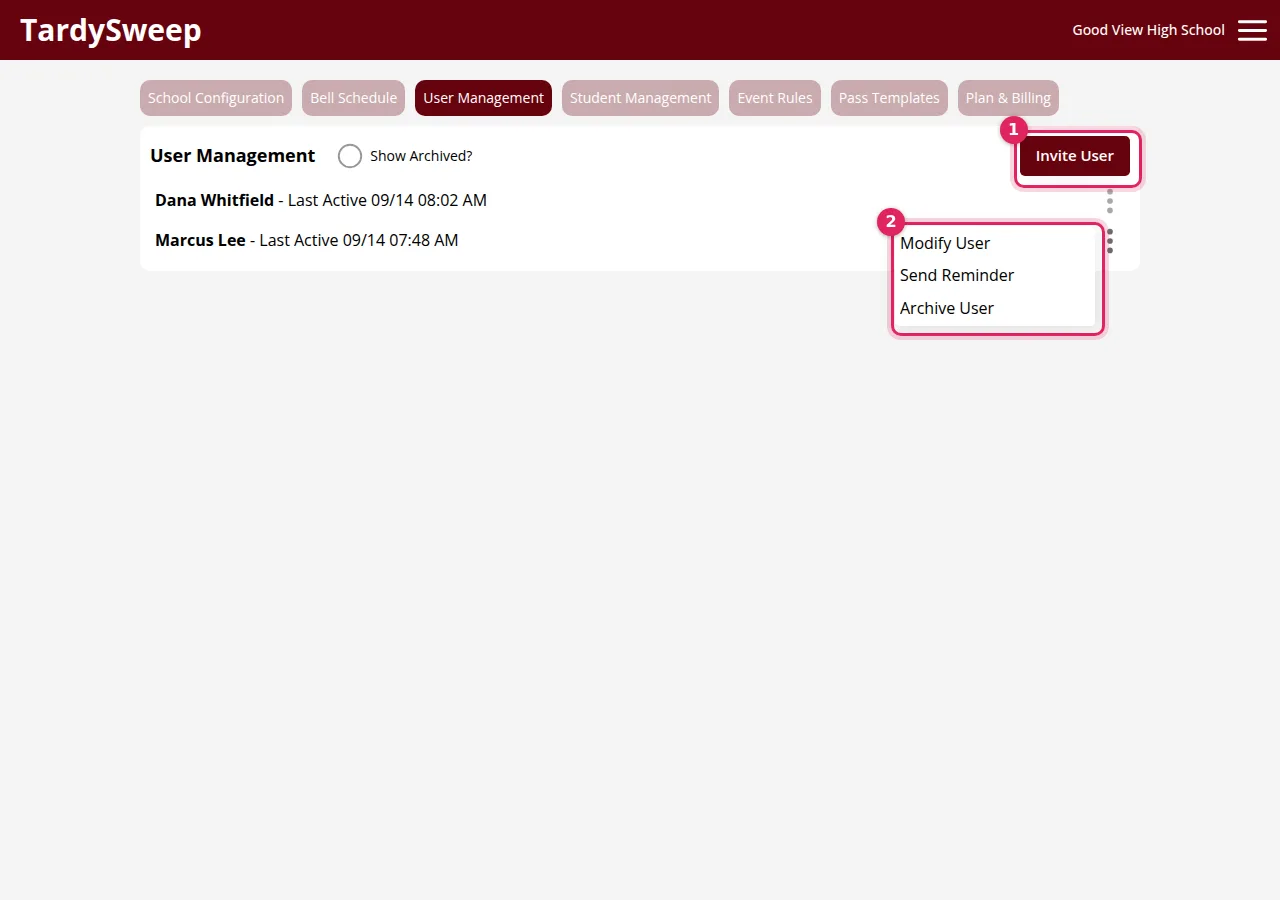
- Go to Admin → User Management and click Invite User.
- Enter their school Email, First Name and Last Name.
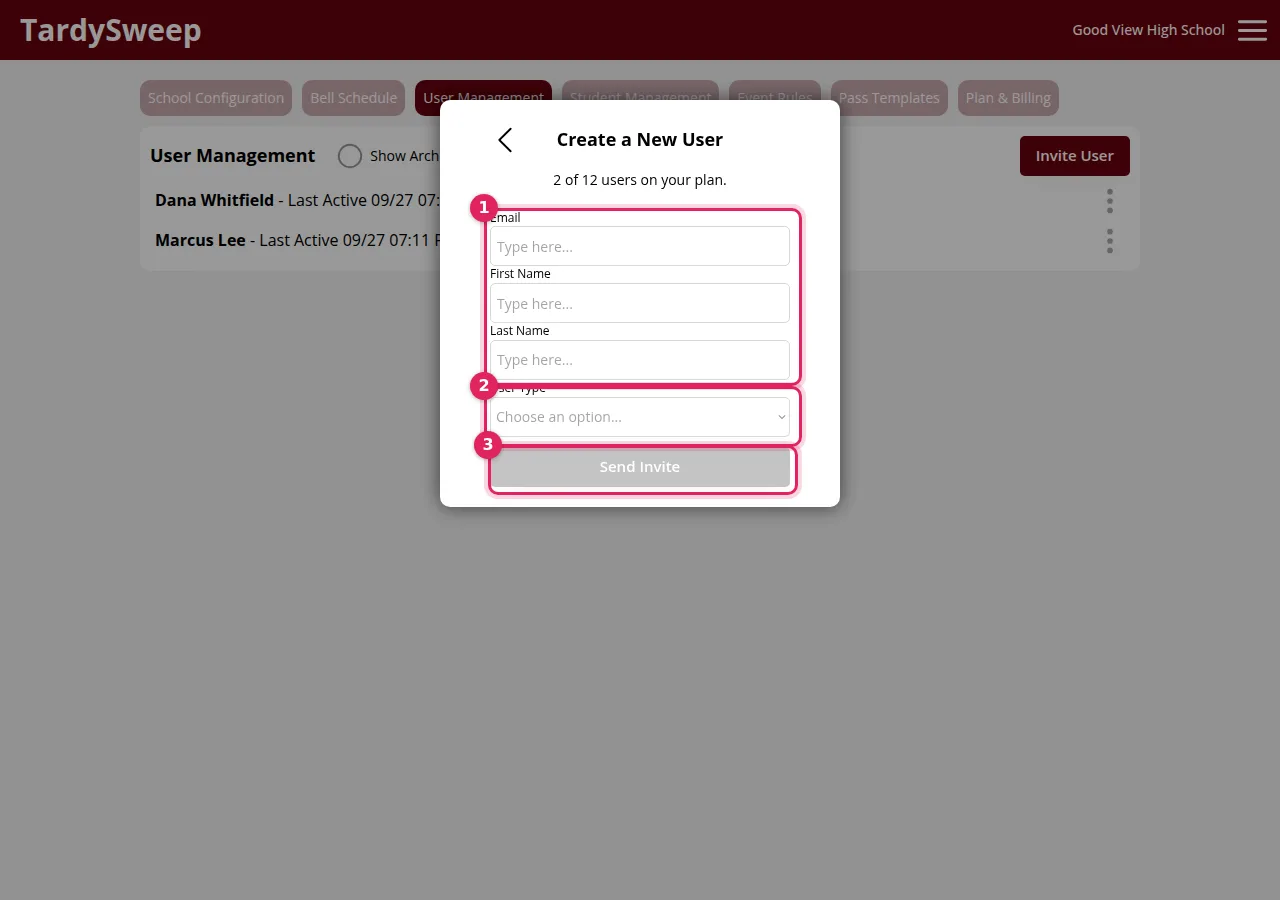
- Choose a User Type: Standard for people who only log tardies, or School Admin for people who help run TardySweep. (See What can I do? User roles explained.)
- Click Send Invite. They get an email titled "I'm inviting you to TardySweep" with a link to set their password.
Tip: The window shows how many users you have and how many your plan includes. If you're out of seats, you'll see an Update Plan button.
Change, remind or archive a user
Click the ⋮ next to a person:
- Modify User: fix their name or email, or change their User Type
- Send Reminder: re-sends the invite if they haven't set a password yet
- Archive User: turns off their access when they leave. Their tardies stay in your reports.
Turn on Show Archived? to see archived people and bring them back with Unarchive User.
People asking to join
Staff can also sign up themselves with their school email. Their requests show on this tab. Choose an access level and click Approve, or click Decline.
If something goes wrong
If someone didn't get the invite, ask them to check spam, then use Send Reminder. See I didn't get the email.
Was this helpful?
Thanks for the feedback!