
Step 3: Build your bell schedule
Create your periods, put them in order with start times, and choose which weekdays each schedule runs.
Your bell schedule tells TardySweep which period a student was late to, based on the time the tardy is logged. You build it in two parts: first the list of periods, then one or more schedules that put those periods in order with start times.
Part 1: Create your periods
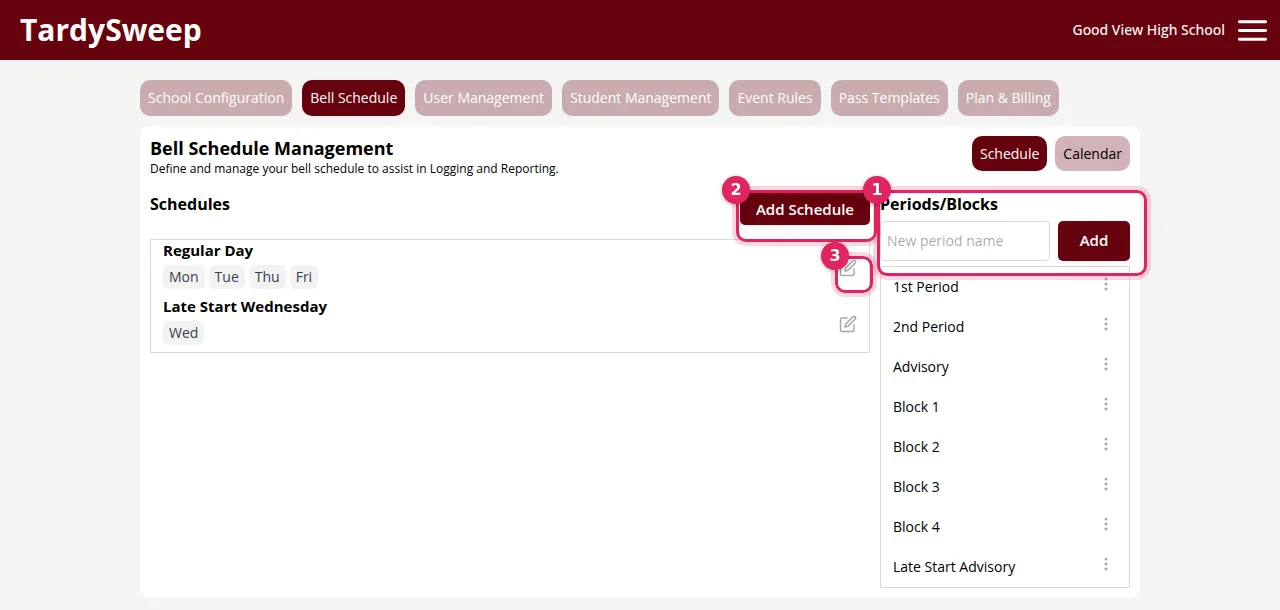
- Go to Admin → Bell Schedule.
- On the right under Periods/Blocks, type a period name (for example "1st Period" or "Block 1") and click Add. Do this for every period, including Advisory or Homeroom if you track it.
Part 2: Build a schedule
- Click Add Schedule (or the pencil icon next to an existing schedule). The Manage Schedule window opens.
- Type a Schedule Name, such as "Regular Day".
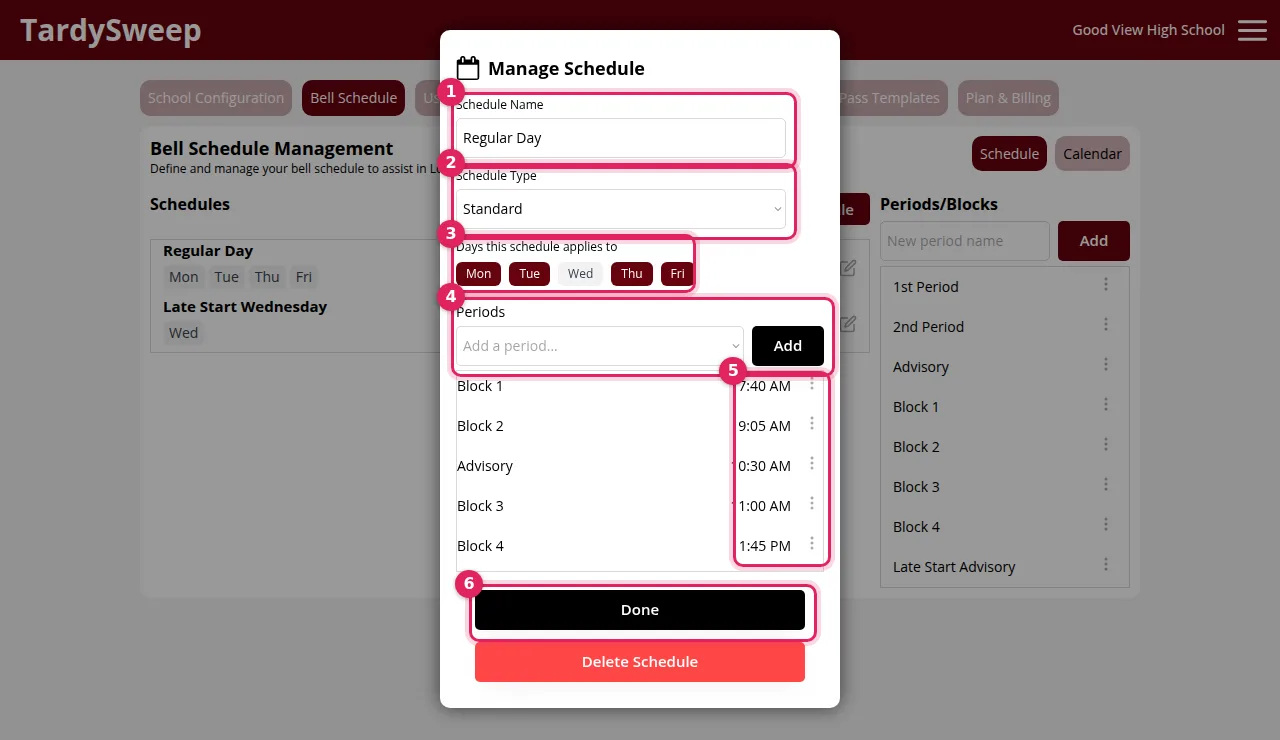
- Leave Schedule Type as Standard for a normal week. Use Special for one-off days like early release or testing.
- Under Days this schedule applies to, click each weekday that uses this schedule. Selected days turn dark.
- Under Periods, pick a period from the list and click Add. Repeat until every period in the day is listed.
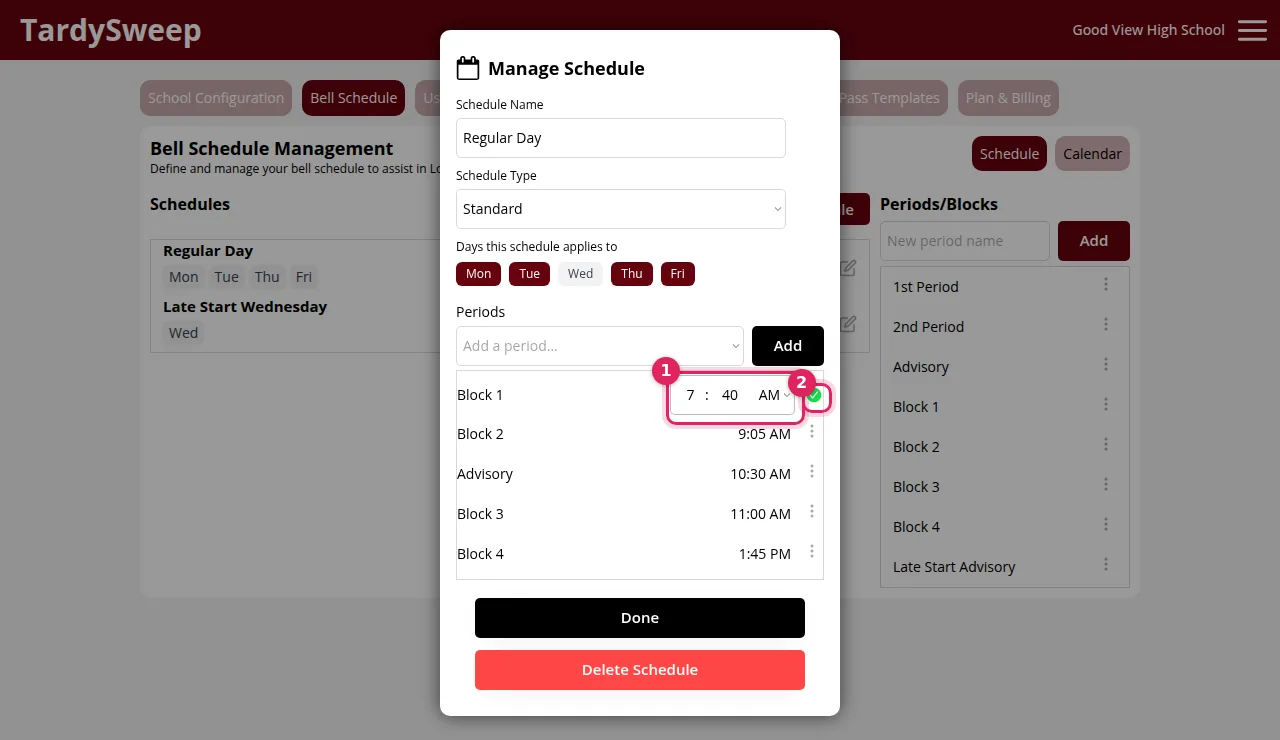
- Click a period's time to set its start time. Enter the hour and minutes, choose AM or PM, then click the green check mark.
- Click Done.
Tip: Does one day look different, like a late-start Wednesday? Make a second schedule (for example "Late Start Wednesday") and give it only that weekday. Take that day off your regular schedule.
How to know it worked
Every school day (Mon–Fri) appears under exactly one schedule, and Build your bell schedule is ticked off on the setup checklist.
Was this helpful?
Thanks for the feedback!