
Step 2: Your school year calendar and terms
Add your quarter and semester dates so TardySweep knows when terms start and when to reset counts.
TardySweep uses your school calendar dates to know when the year, each semester and each quarter begin. That decides how reports group tardies ("This Quarter", "This Semester") and when student counts reset.
Before you start
Have your district calendar handy with the first and last day of each quarter (or semester or trimester).
Steps
- Go to Admin → School Configuration and scroll down to School Calendar.
- Click Add Date. The Manage Calendar Date window opens.
- Give the term a Name, for example "Quarter 1 2026".
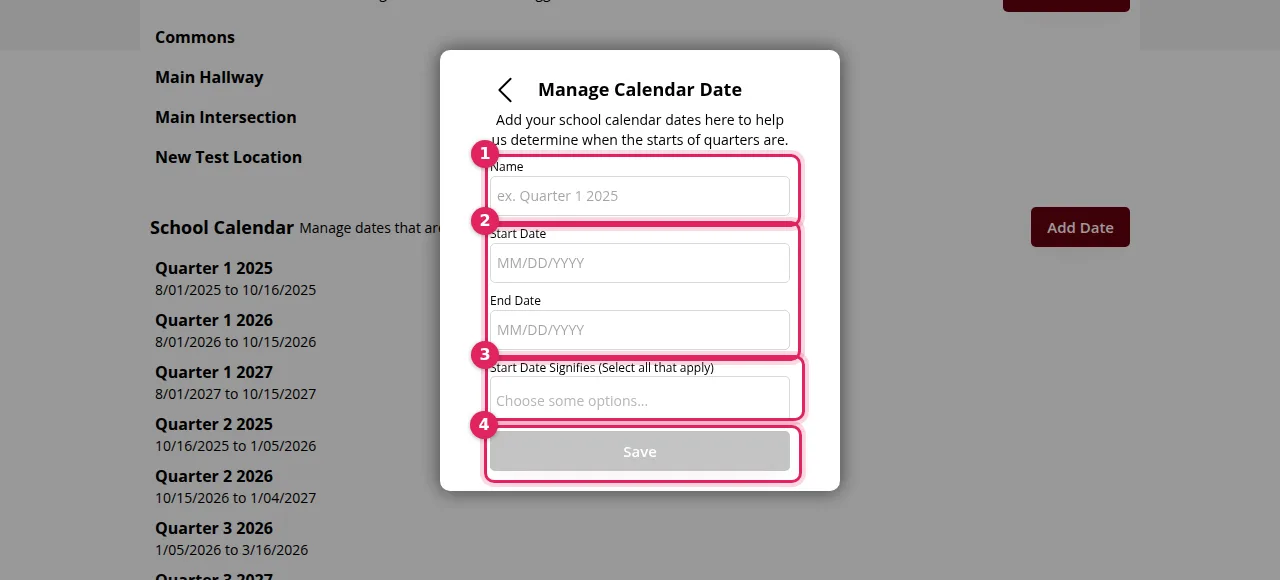
- Enter the Start Date and End Date (MM/DD/YYYY).
- Under Start Date Signifies, pick everything that begins on that day: Start of Year, Start of Semester and/or Start of Quarter. For example, Quarter 1 usually starts the year, the first semester and the first quarter, so pick all three.
- Click Save. Repeat for each quarter or term in the year.
Examples
Quarter 1: Start of Year + Start of Semester + Start of Quarter
Quarter 2: Start of Quarter
Quarter 3: Start of Semester + Start of Quarter
Quarter 4: Start of Quarter
How to know it worked
Each term appears in the School Calendar list with its dates, and Set your calendar & terms is ticked off on the setup checklist.
Tip: Add next year's dates before summer ends so reports and counts roll over on the first day without anyone having to remember.
Was this helpful?
Thanks for the feedback!