
Signing in and resetting your password
How to sign in to TardySweep, and what to do if you forgot your password.
Before you start
You need a TardySweep account. Usually your school's administrator creates it and you get an email titled "I'm inviting you to TardySweep". Click the link in that email to set your password the first time.
Sign in
- Go to app.tardysweep.com.
- Type your school email address and your password.
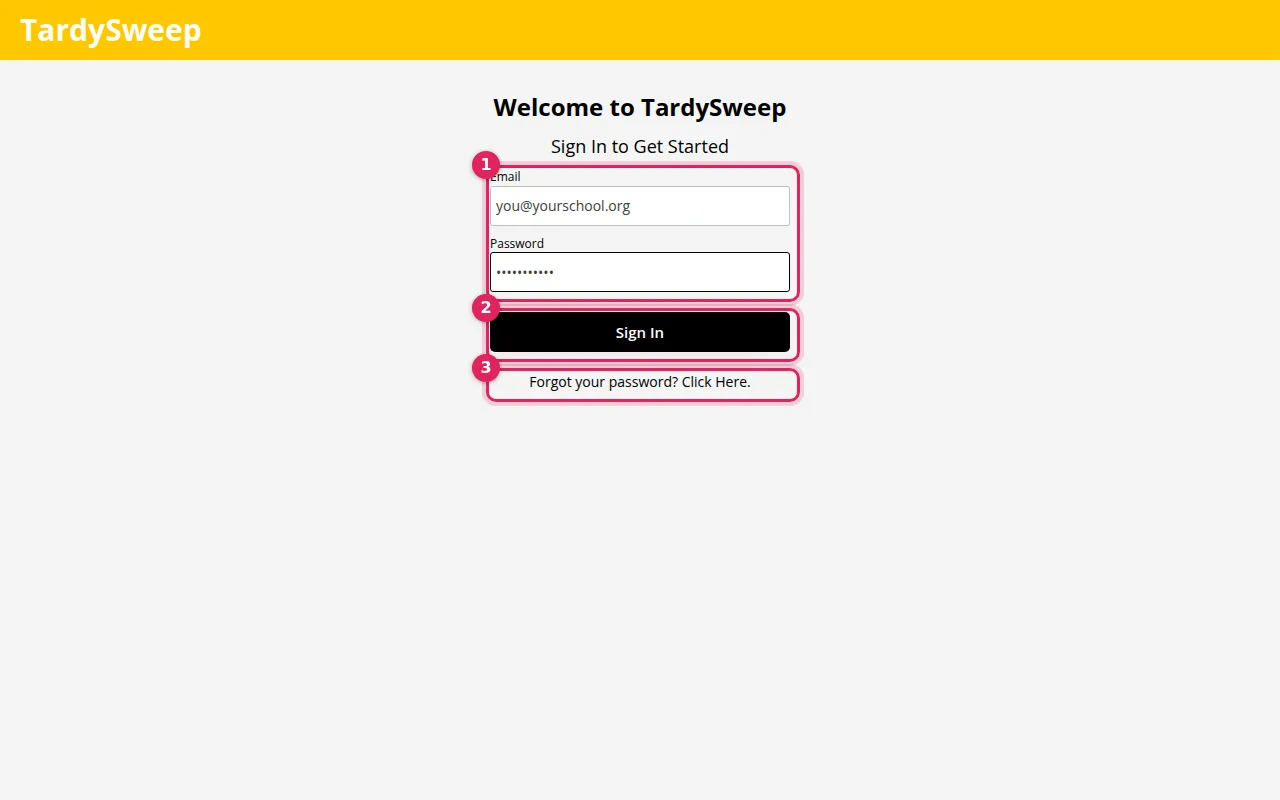
- Click Sign In. The button stays grey until both boxes are filled in.
Tip: TardySweep remembers you for about 30 days on the same device, so you won't have to sign in every day.
Forgot your password?
- On the sign-in page, click Forgot your password? Click Here.
- Type the email address you use for TardySweep and click Get Link.
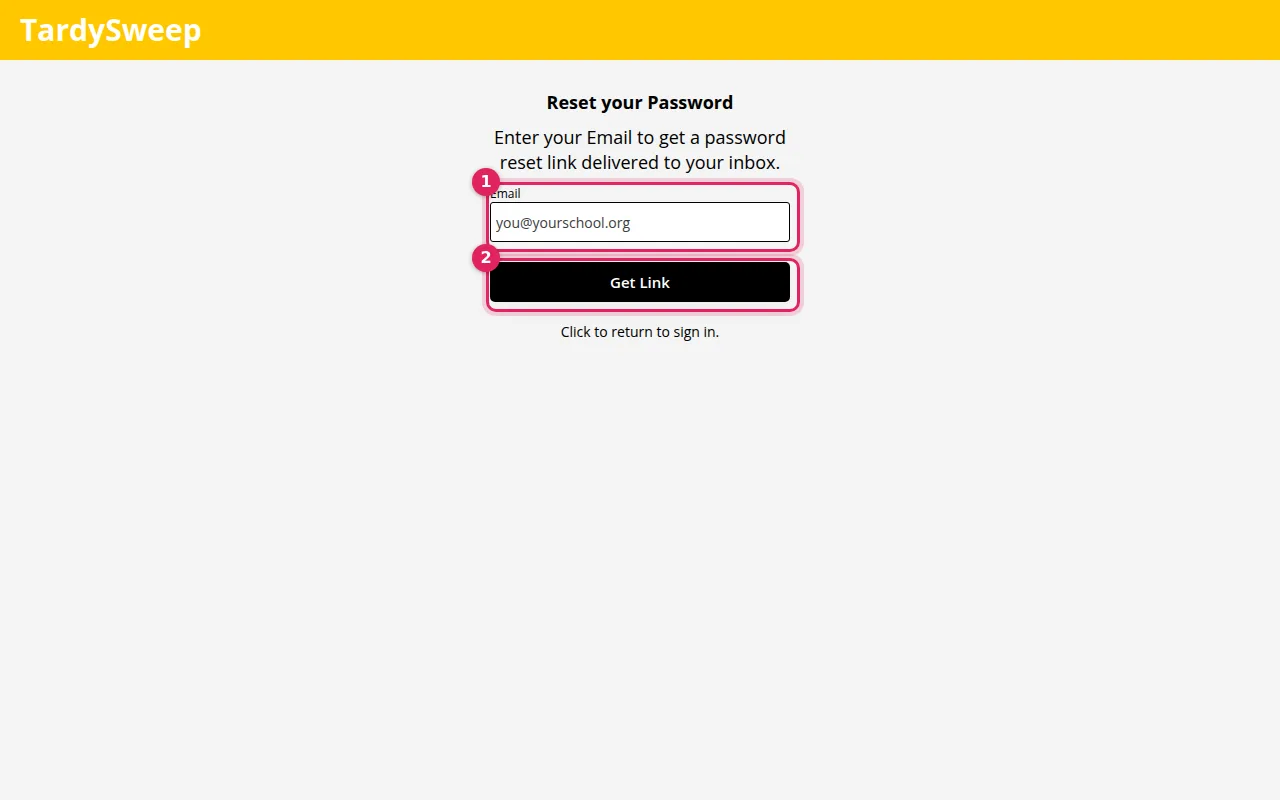
- Open the email from TardySweep and click the link. It can take a minute or two to arrive.
- Type your new password twice and click Confirm. You are now signed in.
If something goes wrong
No email? Check your spam or junk folder. See I didn't get the email for more help.
Still can't sign in? Ask your school's TardySweep administrator to check that your account uses the right email address and hasn't been archived.
Was this helpful?
Thanks for the feedback!