
Set up a tardy station
Get a computer at each entrance ready to log tardies, with an optional printer for passes and an optional barcode scanner.
A tardy station is a spot where late students check in, usually the main entrance, the front office or a busy hallway. Most schools have one to three. Each station is simply a device signed in to TardySweep. A printer and a barcode scanner are optional extras.
What each station needs
- Required: a computer, Chromebook or tablet with internet and an up-to-date web browser.
- Optional: a printer for passes, either a regular office printer (8.5×11 paper) or an 80mm receipt printer. Passes aren't required to use TardySweep.
- Optional: a USB barcode scanner, if your student ID cards have barcodes.
1. Name the station's location
- Go to Admin → School Configuration and scroll to Locations. Click Add Location.
- Type a Name staff will recognize, like "Main Entrance" or "Front Office", and click Save. Add one for each station.
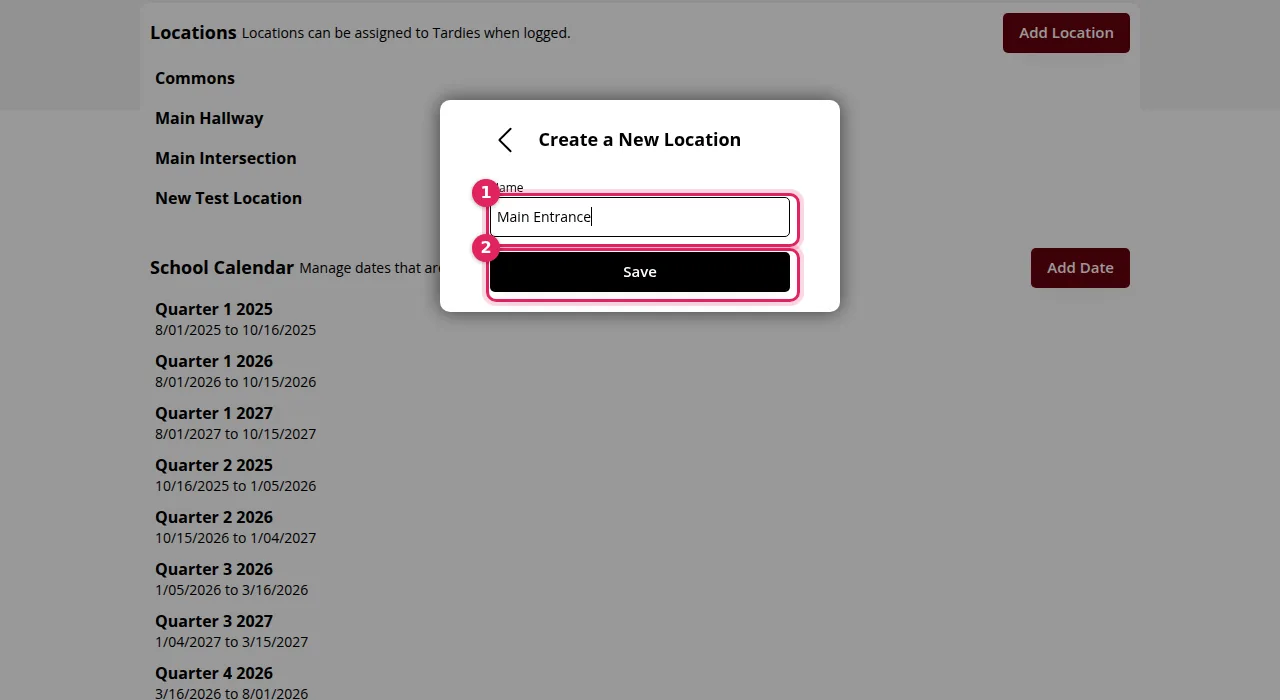
Locations are optional, but they show up in reports so you can see which doors are busiest and where students are being held up.
2. Sign in at the station
- On the station computer, go to app.tardysweep.com and sign in with the account of the staff member who runs the station. TardySweep keeps them signed in for about 30 days.
- Bookmark the page, or make it the browser's home page, so the Tardy Logger is one click away every morning.
- Search for any student to open their card, choose the station's Location, then close the card with the X. Nothing is logged. TardySweep remembers that location for this account, so it's already picked for the next tardy.
Tip: The location is remembered for each person, not each computer. If someone works at more than one station, have them check the Location when they move.
3. Connect a printer (only if you use passes)
- Connect the printer to the station computer, install it using the maker's instructions, and make it the computer's default printer.
- In Admin → Pass Templates, set the pass's Page Size to match: 8.5X11 for a regular printer or 80mm Thermal for a receipt printer. If stations have different printers, make one template for each size.
- Optional: tick Bypass Print Popup on your default template so passes print right after Log Tardy without extra clicks.
- Print a test: open a student who has a tardy in their Recent Activity and click Print Pass. This reprints their last pass without logging anything. In the browser's print window, pick the printer, set margins to None and scale to 100% (and the 80mm paper size for receipt printers). Most browsers remember these settings.
Tip: Want to skip the browser's print window entirely? Chrome has a "kiosk printing" mode that prints straight to the default printer. Ask your IT team to set it up on dedicated station computers.
4. Add a barcode scanner (optional)
Plug a USB barcode scanner into the station computer and test it. See Use a USB barcode scanner for the full walkthrough.
5. Keep it running
- Set the computer so it doesn't sleep or lock during the school day.
- Keep it plugged in to power.
- If TardySweep shows a message asking you to refresh the page, refresh it.
- If you see the offline message, check the Wi-Fi or network cable.
How to know it worked
When the first late student arrives, their card shows the right Location, the tardy appears in their Recent Activity and, if you use passes, the pass prints on the right paper.
Was this helpful?
Thanks for the feedback!