
Step 1: School details and time zone
Set your school's name, city, state, color and time zone.
Your school's name appears on reports and printed passes. The time zone decides the time stamped on every tardy, so set it before anyone logs a tardy.
Steps
- Open the menu (three lines, top right) and click Admin. The School Configuration tab opens.
- Under School Profile, check the School name, City and State.
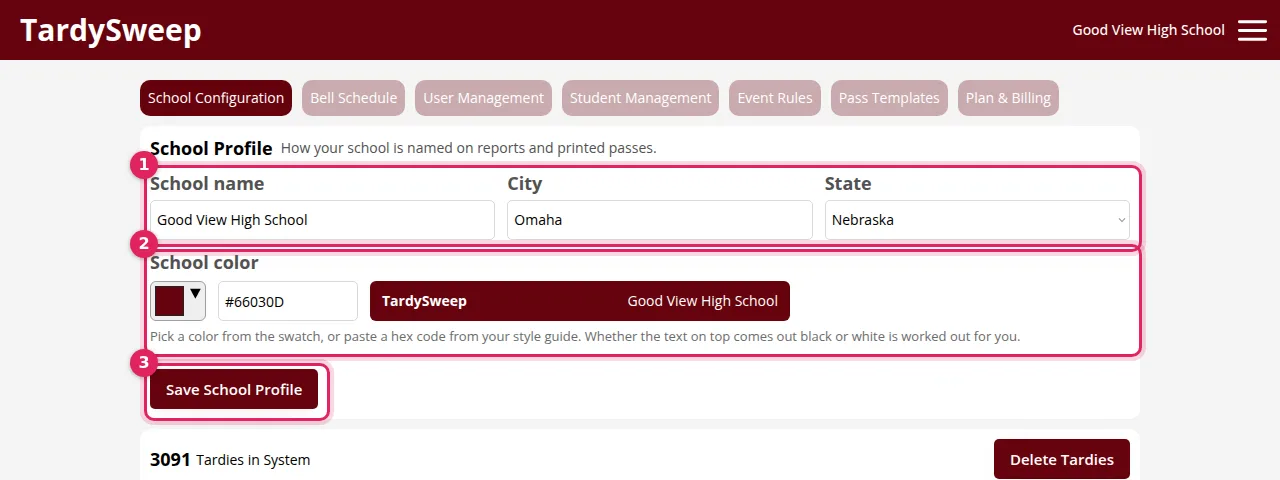
- Pick a School color from the swatch, or paste a hex code (like #66030D) from your school's style guide. The preview shows how the top bar will look. TardySweep picks black or white text for you.
- Click Save School Profile.
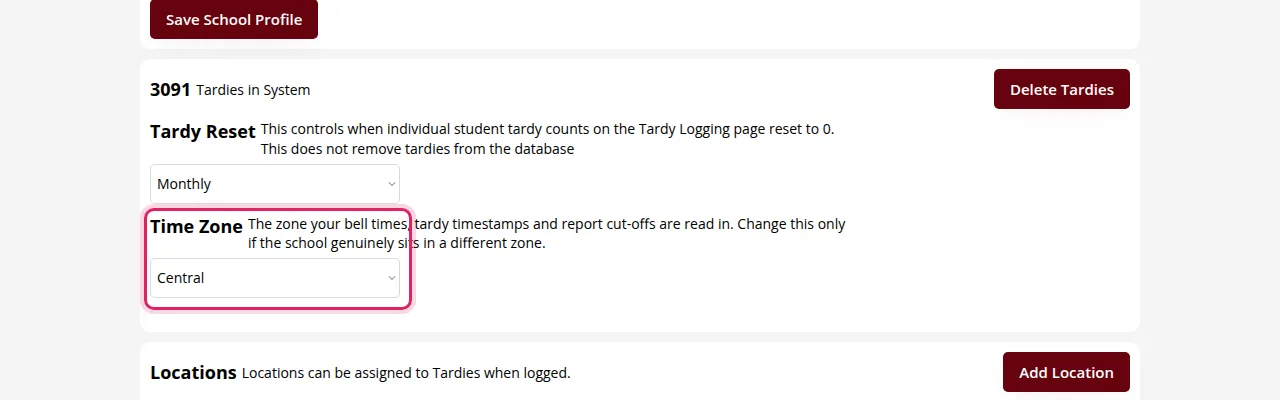
- Scroll down to Time Zone and choose your zone: Eastern, Central, Mountain, Arizona (no daylight saving), Pacific, Alaska or Hawaii (no daylight saving). It saves as soon as you pick it.
Tardy Reset
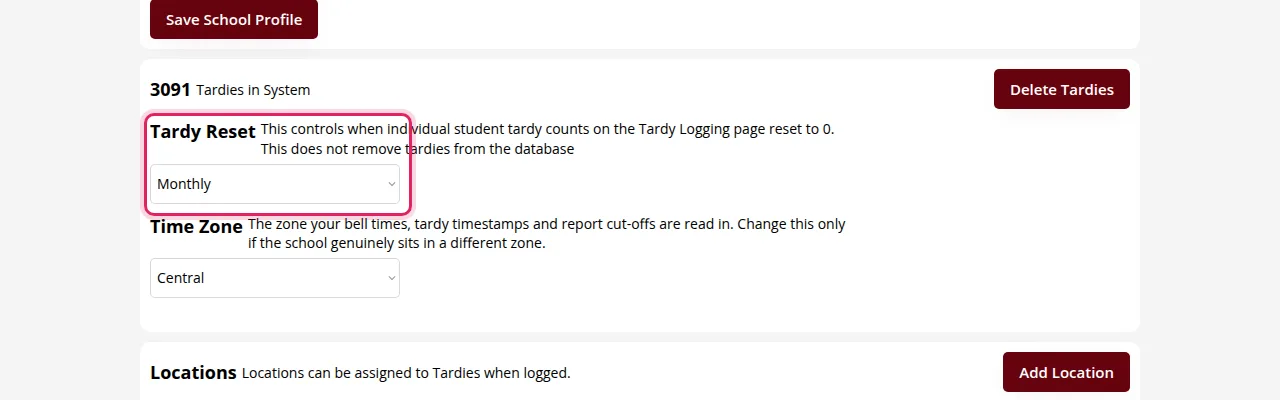
Just above Time Zone, Tardy Reset controls when each student's tardy count on the Tardy Logger goes back to 0: Daily, Weekly, Monthly, Quarterly, At Semester or Yearly. It saves as soon as you pick it.
How to know it worked
The top bar shows your school name in your school color, and Add your school details is ticked off on the setup checklist.
Was this helpful?
Thanks for the feedback!