
Step 4: Add your students (import a spreadsheet)
Import your student list from a CSV file exported from your student information system, or add students one at a time.
Reports, tardy totals and consequence rules all need a student list. The fastest way is to upload a spreadsheet saved as a .csv file.
Before you start
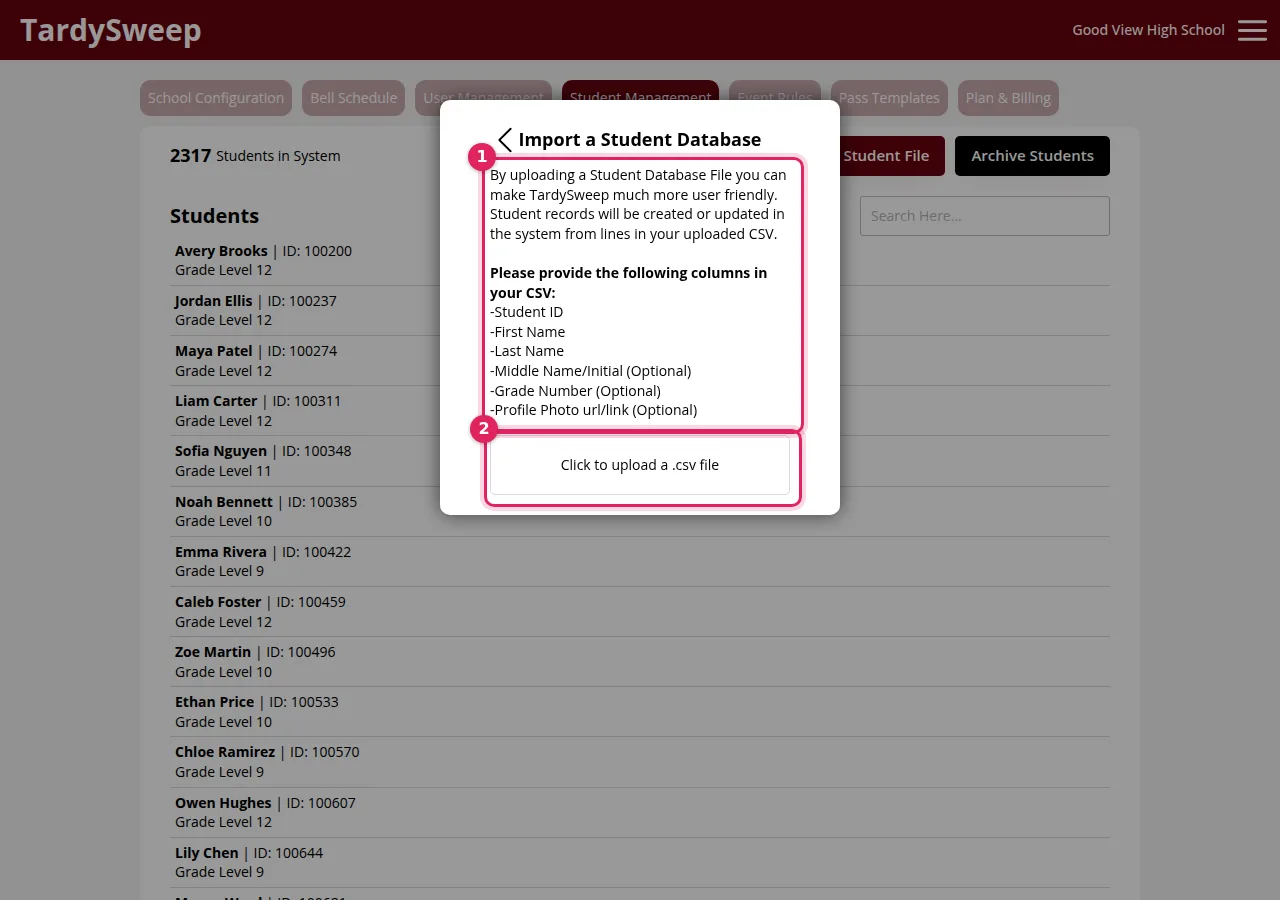
Get a student export from your student information system (PowerSchool, Infinite Campus, Skyward, etc.), or ask your data person for one. Save it as a CSV file. It needs these columns:
- Student ID (required)
- First Name (required)
- Last Name (required)
- Middle Name/Initial (optional)
- Grade Number (optional)
- Profile Photo url/link (optional)
The column names in your file don't have to match exactly. You'll match them up in step 4.
Import your file
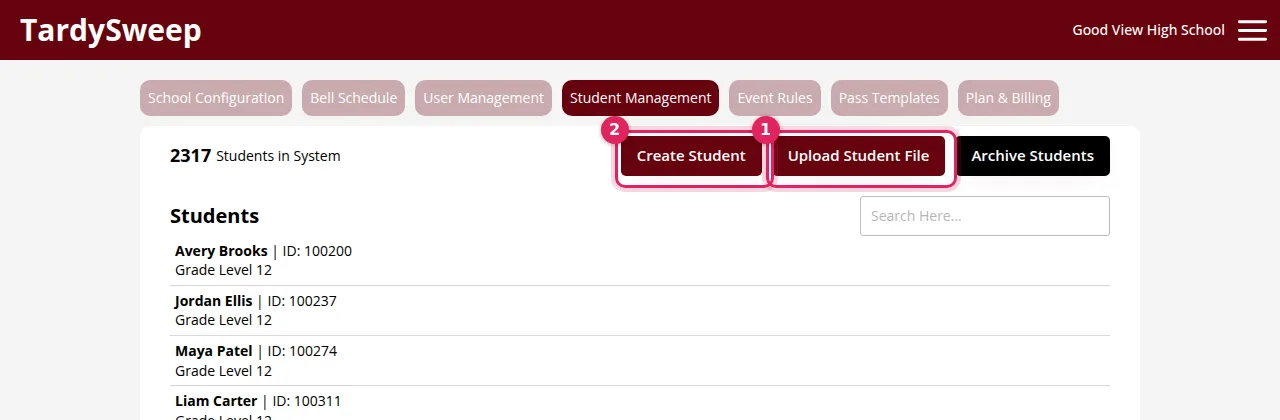
- Go to Admin → Student Management and click Upload Student File.
- In the Import a Student Database window, click Click to upload a .csv file and choose your file.
- TardySweep reads your file and shows a dropdown for each field. For each dropdown, choose the column in your file that matches, then click Continue.
- You'll see Lines of Student Data Detected. Check the number matches roughly how many students you expect, then click Begin Import.
- The tab shows The most recent import is processing. This usually takes a few minutes. Up to 10 minutes is normal. You can leave the page while it runs.
How to know it worked
The tab says The most recent import has finished processing, the student count at the top goes up, and you can search for a student by name.
Tip: Re-importing is safe. Students are matched by Student ID: existing students get updated and new ones are added. Upload a fresh file at the start of each semester to pick up new enrollments.
Add or change one student
Click Create Student, fill in Student ID, First Name, Last Name and Grade Level, then click Save Changes. To edit someone, click their name in the list. The same window has Archive Student for students who have left.
To archive many students at once (for example graduates), click Archive Students and upload a CSV with just a Student ID column.
If something goes wrong
Was this helpful?
Thanks for the feedback!