
Your setup checklist, explained
What the Finish setting up TardySweep panel on the Admin page means, and how to work through it.
When you open the Admin page, the Finish setting up TardySweep panel at the top lists what still needs doing. Each card has a button that takes you straight to the right place.
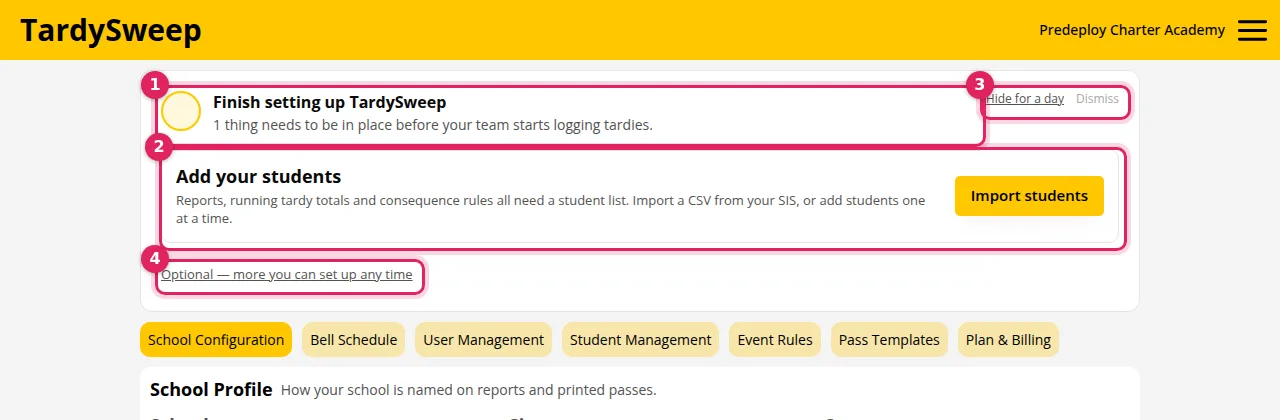
The required steps
These four need to be done before your team starts logging tardies:
- Add your school details: name, location and time zone
- Set your calendar & terms: when the year starts and how it's divided
- Build your bell schedule: so TardySweep knows which period a student was late to
- Add your students: reports, totals and rules all need a student list
The optional steps
Click Optional: more you can set up any time to see them:
- Create your first tardy pass: only if you want to print passes. Passes are optional, and TardySweep works fully without them.
- Invite your team
- Set up consequence rules
- Name your tardy locations
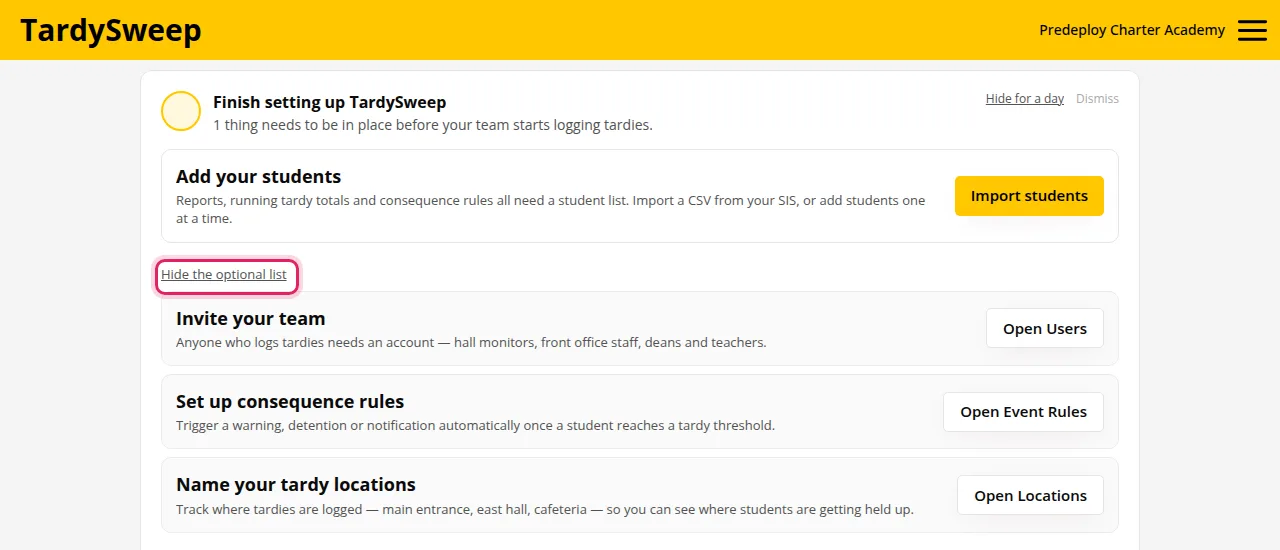
Hiding the panel
Hide for a day tucks the panel away until tomorrow. Dismiss hides it once setup is done.
Tip: Once the required steps are done, see Set up a tardy station to get the computers (and any printers or barcode scanners) at your entrances ready for the first day.
Tip: A finished step can come back. TardySweep checks your real data. If, for example, every student gets archived, Add your students will show up again. That's a helpful warning, not an error.
Was this helpful?
Thanks for the feedback!