
Features
Built for the way schools actually handle tardies.
Every feature in TardySweep exists to do one of three things: make a tardy fast to record, make the response consistent, and make the pattern visible.
Tardy logging
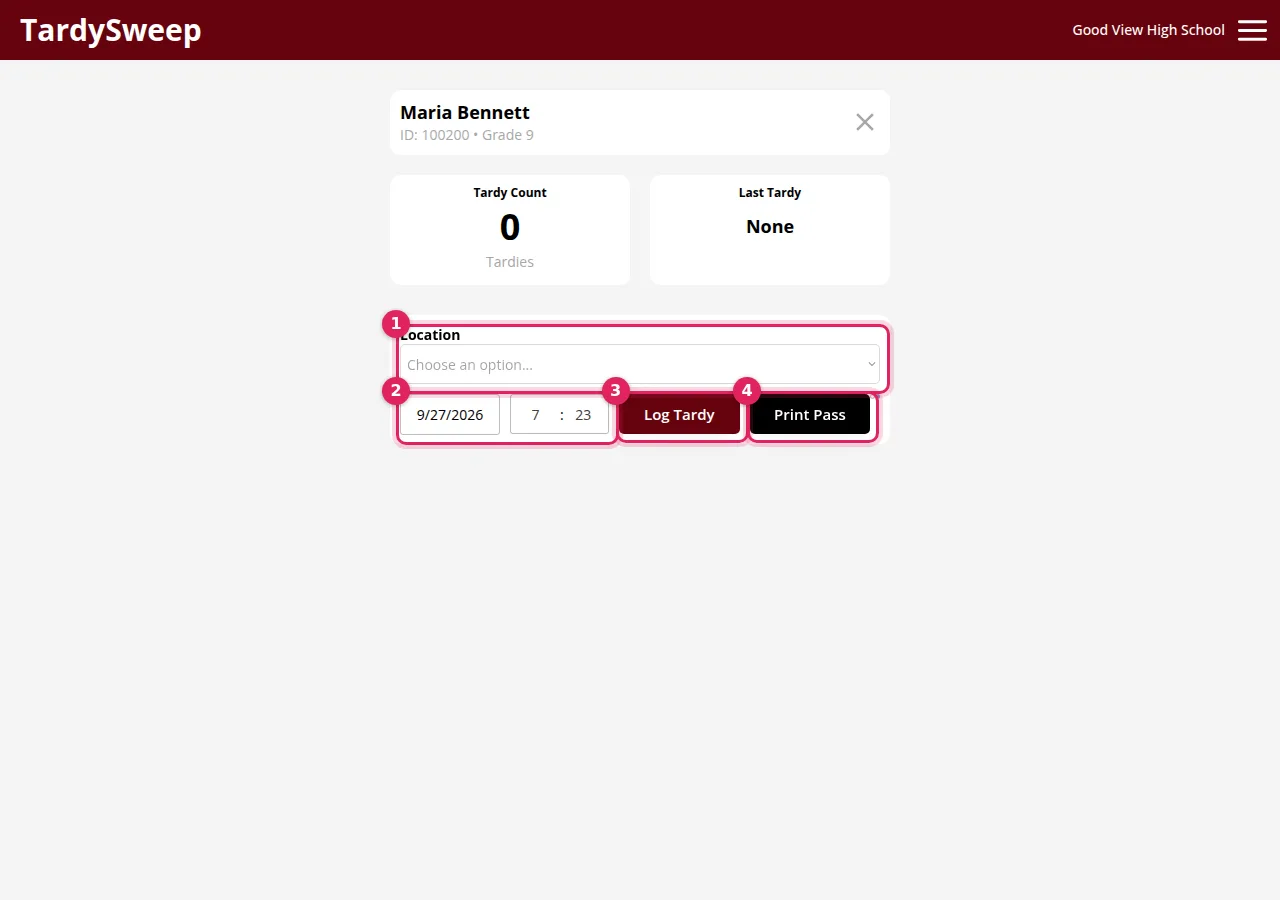
Log a tardy in seconds, wherever students are.
Some schools run tardy stations with barcode scanners where late students check in. Others log students on a phone during hall sweeps, or let teachers log at the classroom door. TardySweep works for all three, at the same time.
- Find a student by typing part of a name, entering an ID or scanning an ID card.
- The date, time, bell period and location fill in automatically.
- A recents list keeps the students you just looked up one tap away.
- A second scan of the same card logs the tardy, so a station can keep a line moving.
Classroom stations
Let late students log their own tardy.
Not every school can staff a tardy desk at every entrance. Classroom stations put a tardy station in each room that needs one. A late student types their student ID on the classroom iPad or Chromebook, confirms their name and taps Log Tardy. Then they see their tardy count and what happens next, and the screen clears itself for the next student.
- Same counts, Event Rules and reports as a tardy logged by staff. The time and period are set by TardySweep, not the device.
- Set up in under a minute. A teacher opens your school's pairing link on the device and enters your 6-digit station code. No admin needed.
- QR check-in. Each station also shows a QR code students can scan with their school iPad. It changes every 15 minutes and only works during the school-day hours you set.
- Students never sign in. The station only looks up the student by ID and records the tardy.
Classroom stations are an add-on priced by the number of rooms. Ask us for a quote.
Event Rules
Consequences that apply themselves, the same way every time.
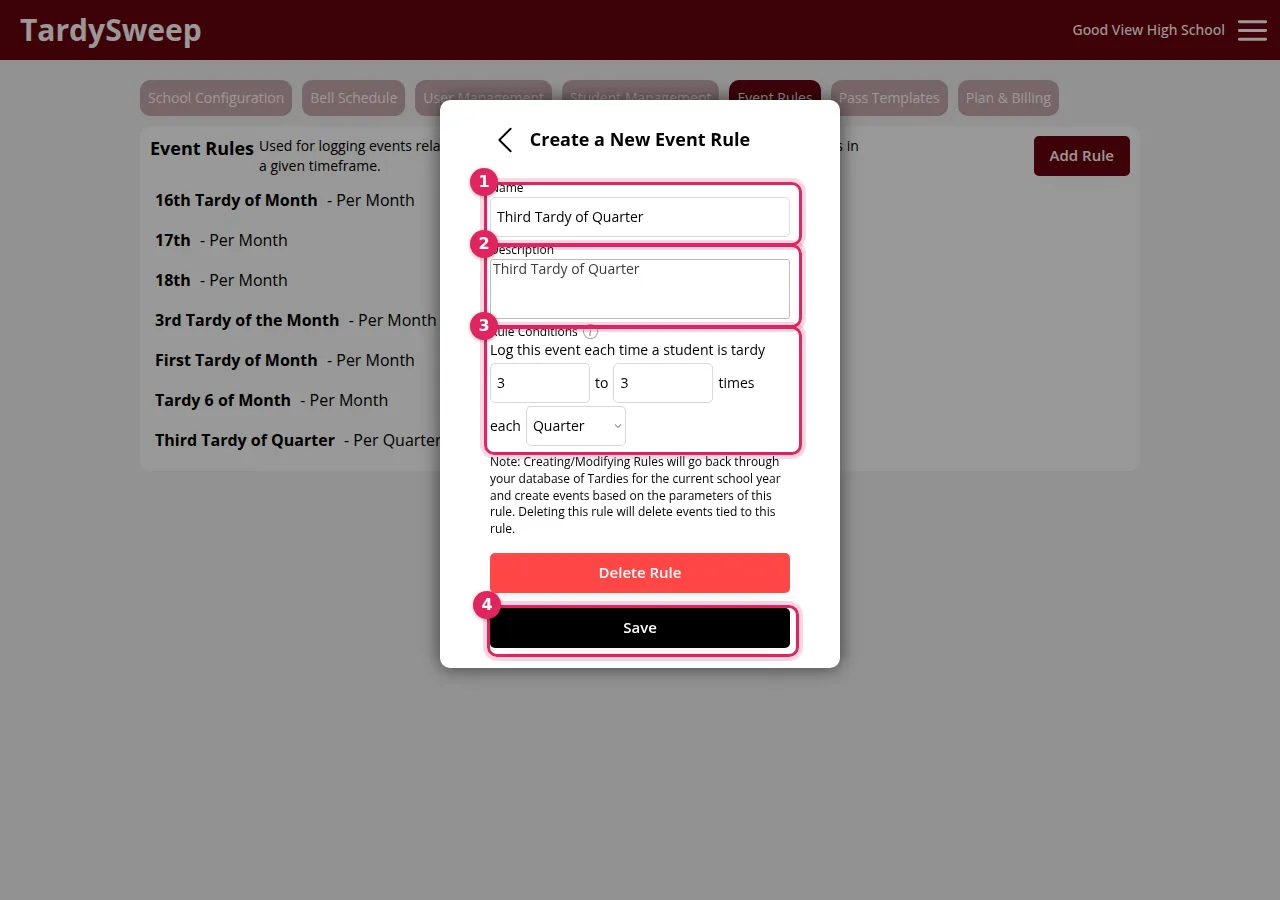
Event Rules are how your tardy policy runs inside TardySweep. Each rule counts a student's tardies over a period you choose and triggers when a milestone is reached. The alert appears on the logging screen right away, so the staff member and the student both know what happens next.
- Assign lunch detention every 5 tardies in a quarter.
- Flag the first tardy of the week.
- Send students with 3 tardies in a week to their administrator.
Because the rule does the counting, the consequence no longer depends on who caught the student. TardySweep never contacts students or parents itself; the alert tells your staff what your policy says to do.
Printable tardy passes
A pass that tells the student where to go.
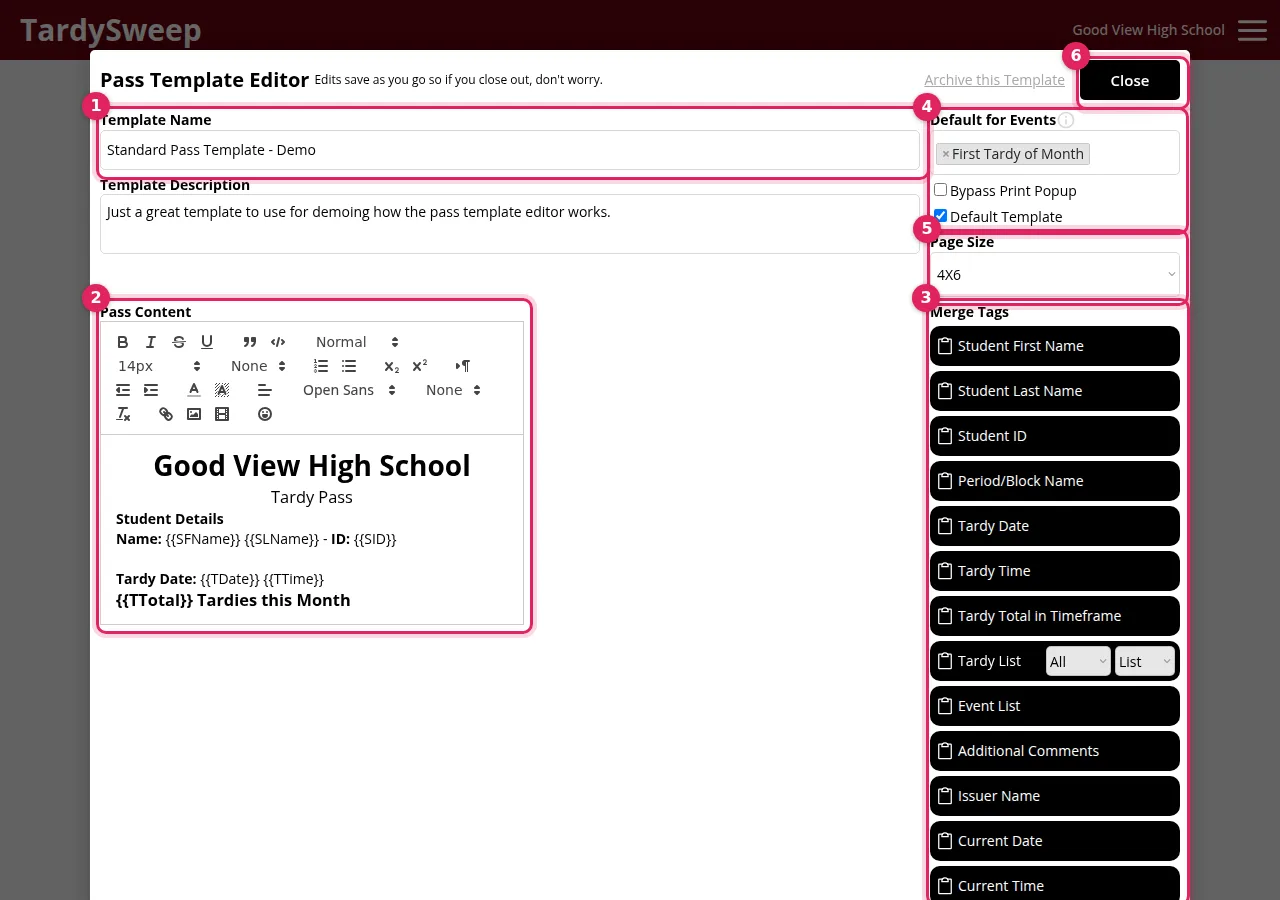
Design your own pass templates and fill them in automatically with details from the student's record, the tardy they were just given and any Event Rule they triggered. A student walks away with the time, the location and their next step on paper.
- Print on standard 8.5×11 paper or 4×6 thermal labels.
- Use different templates for different situations, or tie a template to an Event Rule.
- Passes are optional. Schools that don't use them simply log and move on.
Bell schedules and locations
Every tardy tied to a period and a place.
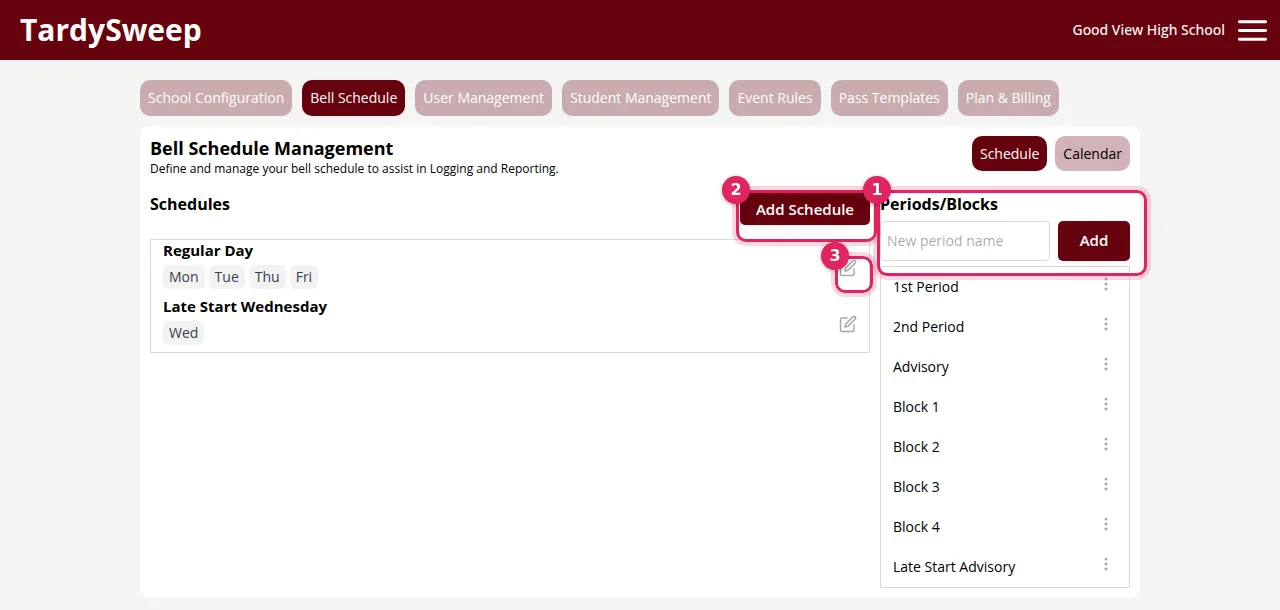
Set up your bell schedules and the locations where tardies are logged, and each tardy is recorded with both. That's what lets you see that third period in the east hallway is the problem, not "tardies" in general.
Your school-year calendar, with the start of each quarter, trimester or semester, decides which reporting period each tardy counts toward. You also choose when the tardy count staff see starts over: daily, weekly, monthly, each term or once a year.
Reporting Dashboard
From the whole building down to one student.
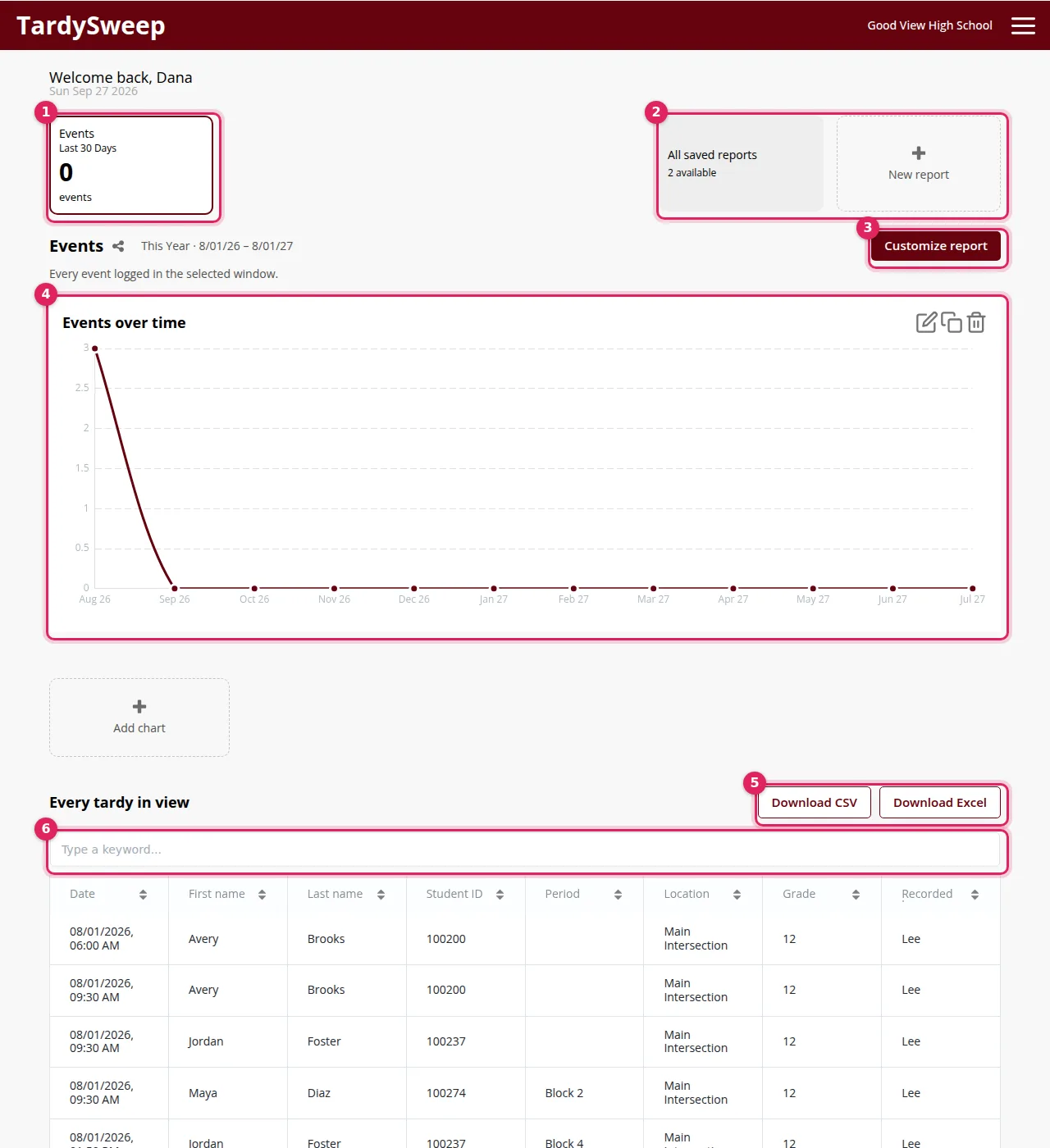
Look at tardies and Event Rule results across any date range, filtered by location, period or individual student. Save the reports you use most and pin them to the top of the dashboard.
- Spot the periods, hallways and days that drive your numbers.
- Find students who are approaching your higher consequence tiers before they get there.
- Export any filtered view to CSV for your SIS, a spreadsheet or Power BI.
Students and SIS integrations
Your student list, searchable in seconds.
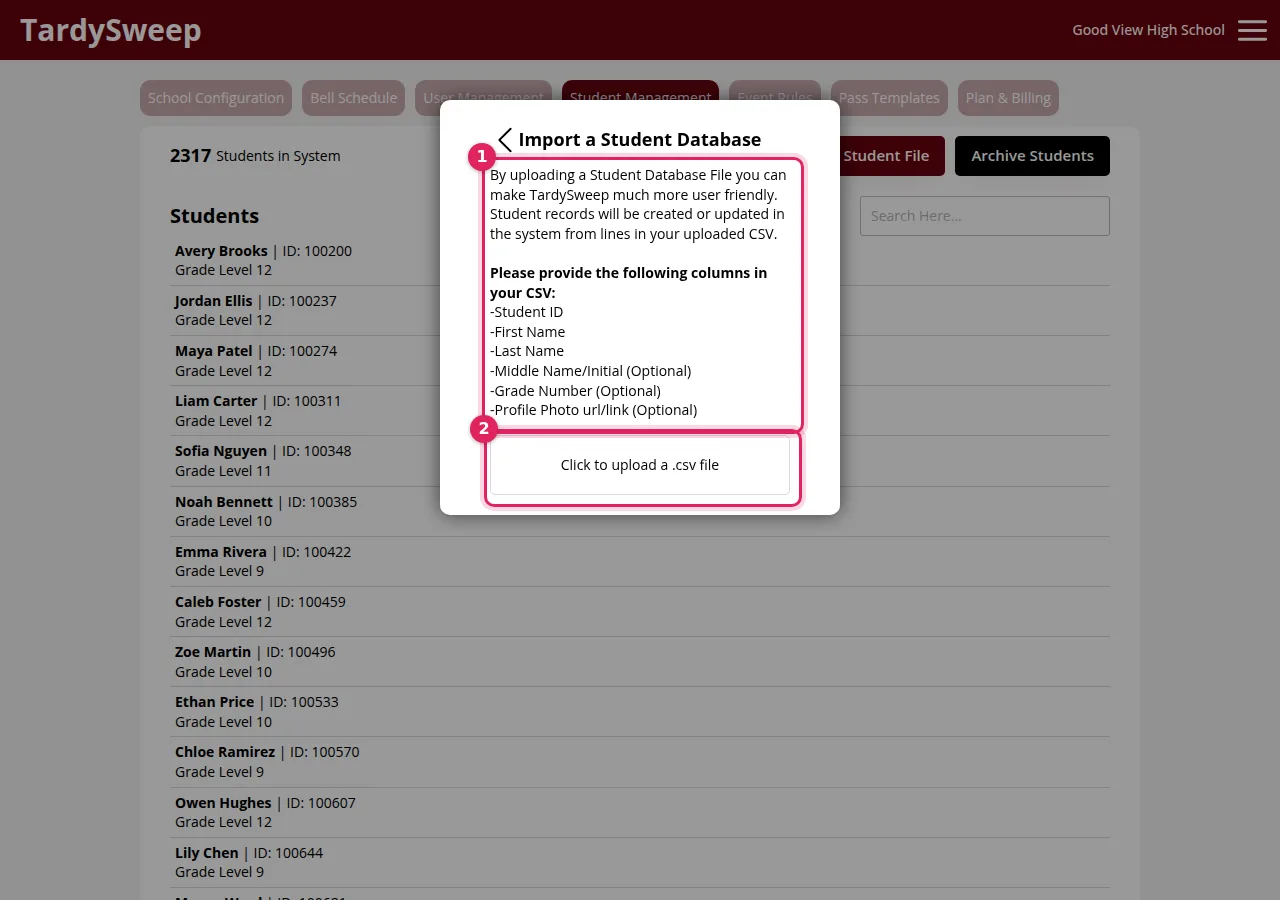
Upload your student list from a spreadsheet and TardySweep matches names, IDs and barcode values so staff can find any student instantly. Re-upload whenever your roster changes.
If you'd rather not upload files, we build custom integrations that pull your student data from your SIS on a schedule and push tardies back to student records, over SFTP or an API. Integrations are quoted separately based on your system.
Apps and devices
Works on what you already have.
- Any web browser on a computer, Chromebook, tablet or phone.
- iPhone and Android apps for logging during sweeps.
- USB barcode scanners for tardy stations, so students can scan their ID cards.
- Pass printers, from a standard office printer to a 4×6 thermal label printer.
Roles and permissions
The right access for each person.
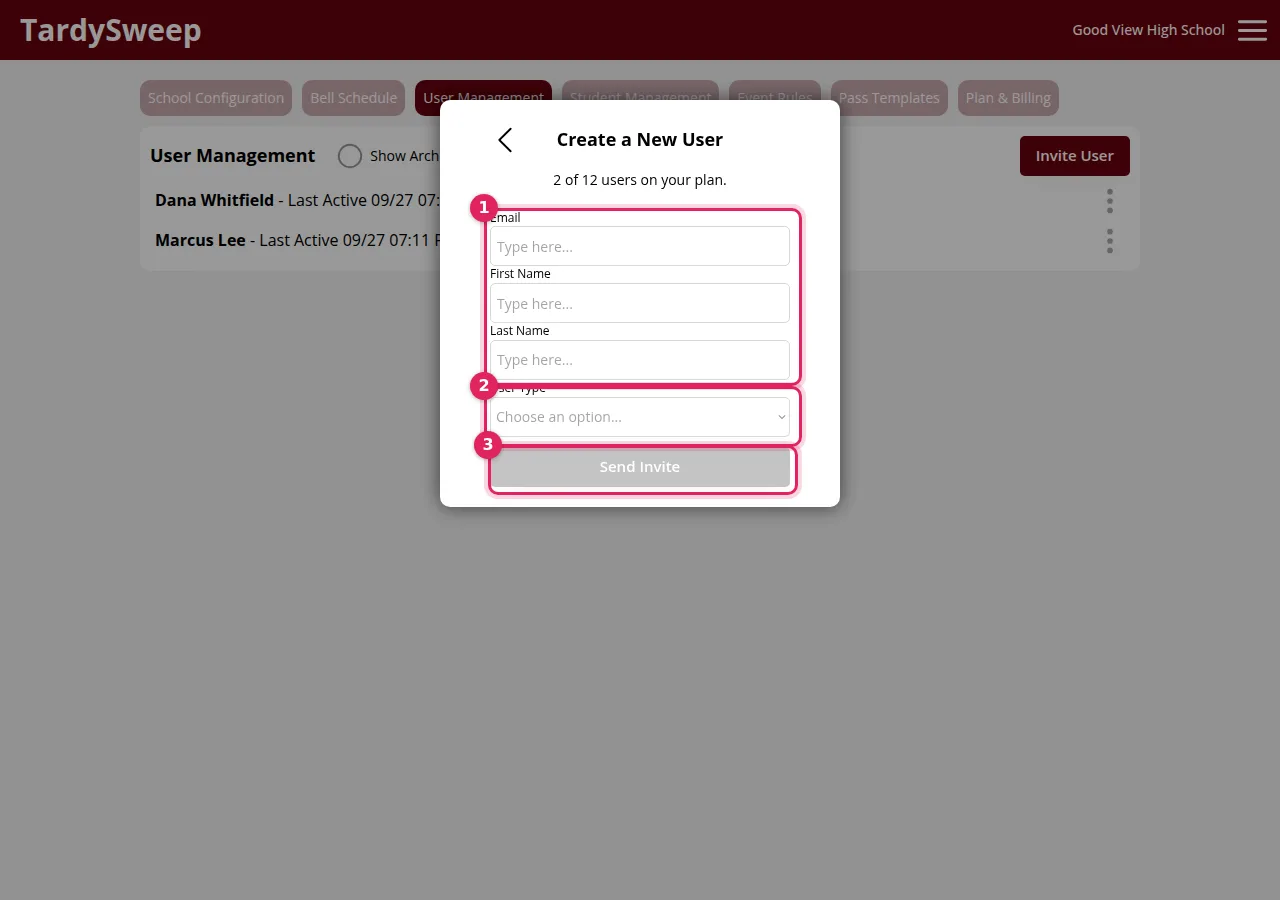
Standard users log tardies at sweeps and stations and print passes. School Admins can also manage bell schedules, the calendar, students, users, Event Rules, pass templates and billing. Invite your team by email, and each person sets their own password.
Have an idea?
TardySweep has been built from the ground up on requests from our schools, including printable passes and Event Rules. If there's something that would help your building, tell us. If you need it, other schools probably do too.
Ready to see TardySweep in your building?
Start a free trial and set up your school yourself, or book a 30-minute walkthrough with Justin.