
Step 5 (optional): Design your tardy pass
Optional: create the pass that prints when a tardy is logged, using fill-in tags for the student's name, time and tardy count.
A pass template is the layout that prints when a staff member logs a tardy.
Tip: Passes are optional. You don't need one to get value from TardySweep. Tardies, counts, consequence rules and reports all work without printing. If you have no pass template, staff just click Log Tardy and move on to the next student. Skip this step if your school doesn't hand out passes.
Create a template
- Go to Admin → Pass Templates and click Add Template. To change an existing pass, click its name instead.
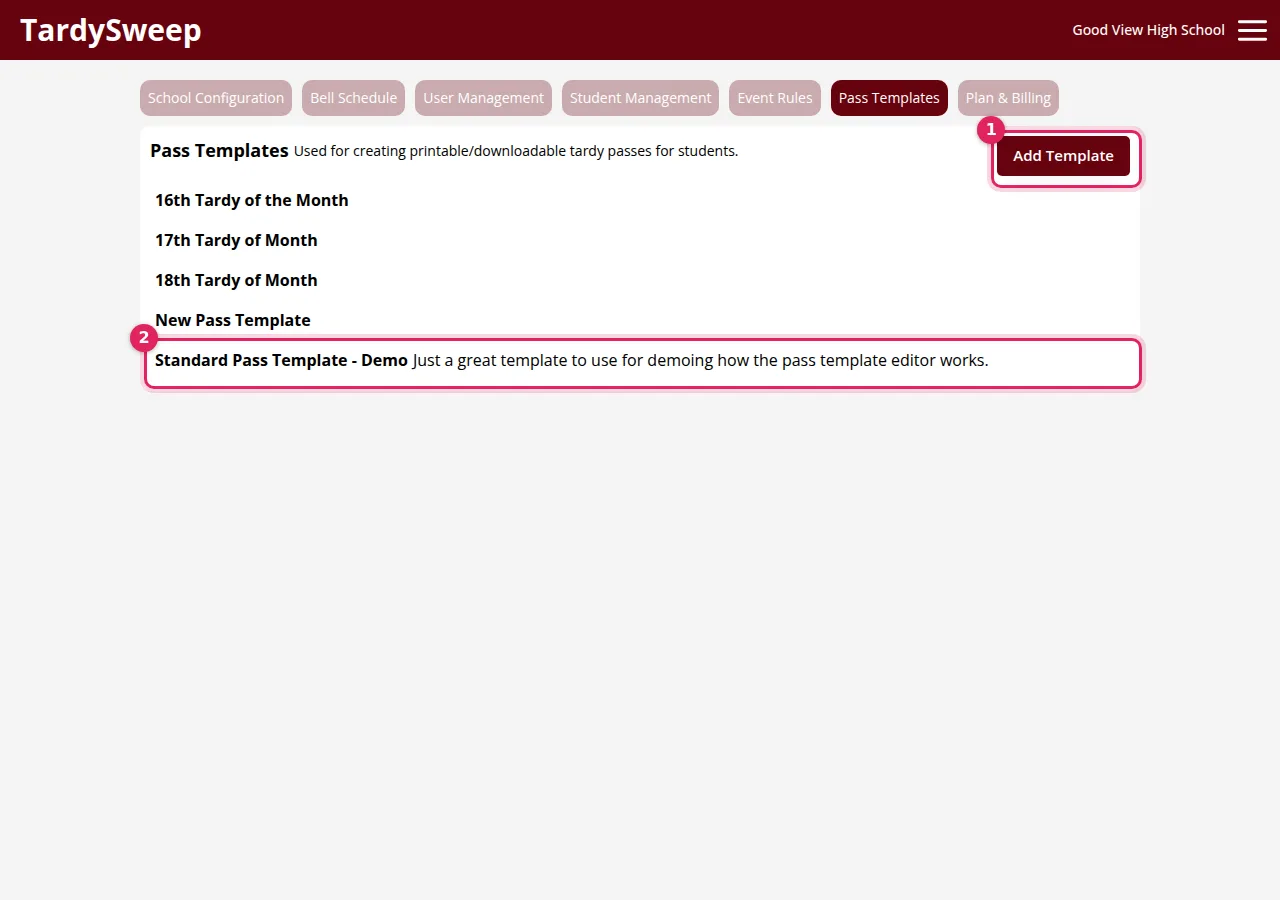
- The Pass Template Editor opens. Changes save as you go, so you can close it at any time.
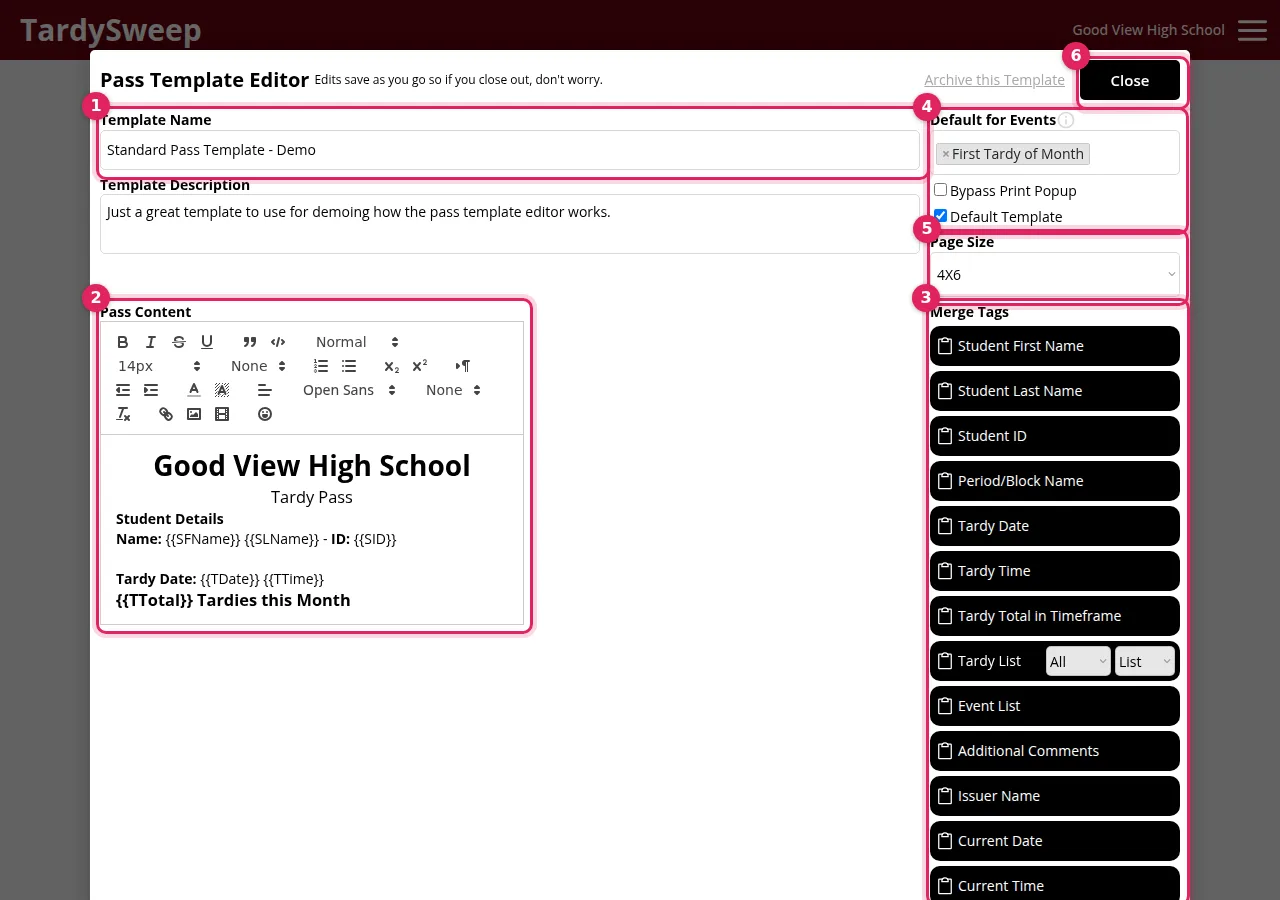
- Give it a Template Name, like "Standard Tardy Pass".
- Type what the pass should say in the Pass Content box. Use the toolbar for bold text, sizes and alignment.
- To add student details, click a tag under Merge Tags. It copies to your clipboard ("Tag copied to clipboard. Paste into Editor!"). Click in the pass where you want it and paste (Ctrl+V, or Cmd+V on a Mac).
- Choose a Page Size that matches the printer at your tardy stations: 8.5X11 for a regular office printer, 80mm Thermal for a receipt printer, 4X6 for label printers, or Page Width to fill whatever paper is loaded.
- Tick Default Template if this is the pass staff should use most of the time, then close the editor.
Tip: For busy tardy stations: tick Bypass Print Popup on your default template. After Log Tardy, the pass goes straight to the printer without TardySweep asking which template to use. This is great with a barcode scanner.
Merge Tags you can use
Student First Name, Student Last Name, Student ID, Period/Block Name, Tardy Date, Tardy Time, Tardy Total in Timeframe, Tardy List, Event List, Additional Comments, Issuer Name, Current Date and Current Time. When the pass prints, each tag is replaced with the real details.
Extra options
Default for Events: use this pass automatically when a tardy triggers a particular consequence rule.
Bypass Print Popup: skip the print options window and go straight to printing.
Archive this Template: hide a pass you no longer use.
How to know it worked
Your template appears in the Pass Templates list. On the Tardy Logger, a Print Pass button now shows on each student's card. After the next tardy is logged, the print window opens with your template selected.
Was this helpful?
Thanks for the feedback!