
Use a USB barcode scanner
Log tardies in seconds by scanning student ID cards with a USB barcode scanner.
If your student ID cards have a barcode, a USB barcode scanner is the fastest way to log tardies. No special software is needed. The scanner types the student ID for you, just like a keyboard, and presses Enter.
What you need
- A USB barcode scanner. Any standard plug-and-play model works, including wireless ones with a USB receiver.
- Student ID cards with a barcode that contains the student ID exactly as it appears in TardySweep.
- The scanner set to press Enter after each scan. Most scanners do this out of the box.
Set it up (one time)
- Plug the scanner into the station computer and wait a few seconds for the computer to recognize it.
- Test it outside TardySweep. Open Notepad (Windows), TextEdit (Mac) or a Google Doc and scan a student card. You should see the student ID, and the cursor should jump to a new line.
- Test it in TardySweep. Open the Tardy Logger, click in the Student box and scan the same card. The student's card should open. Nothing is logged yet.
Log a tardy with the scanner
- Click in the Student box. You only need to do this when you first open the page.
- Scan the student's ID card. Their card opens straight away.
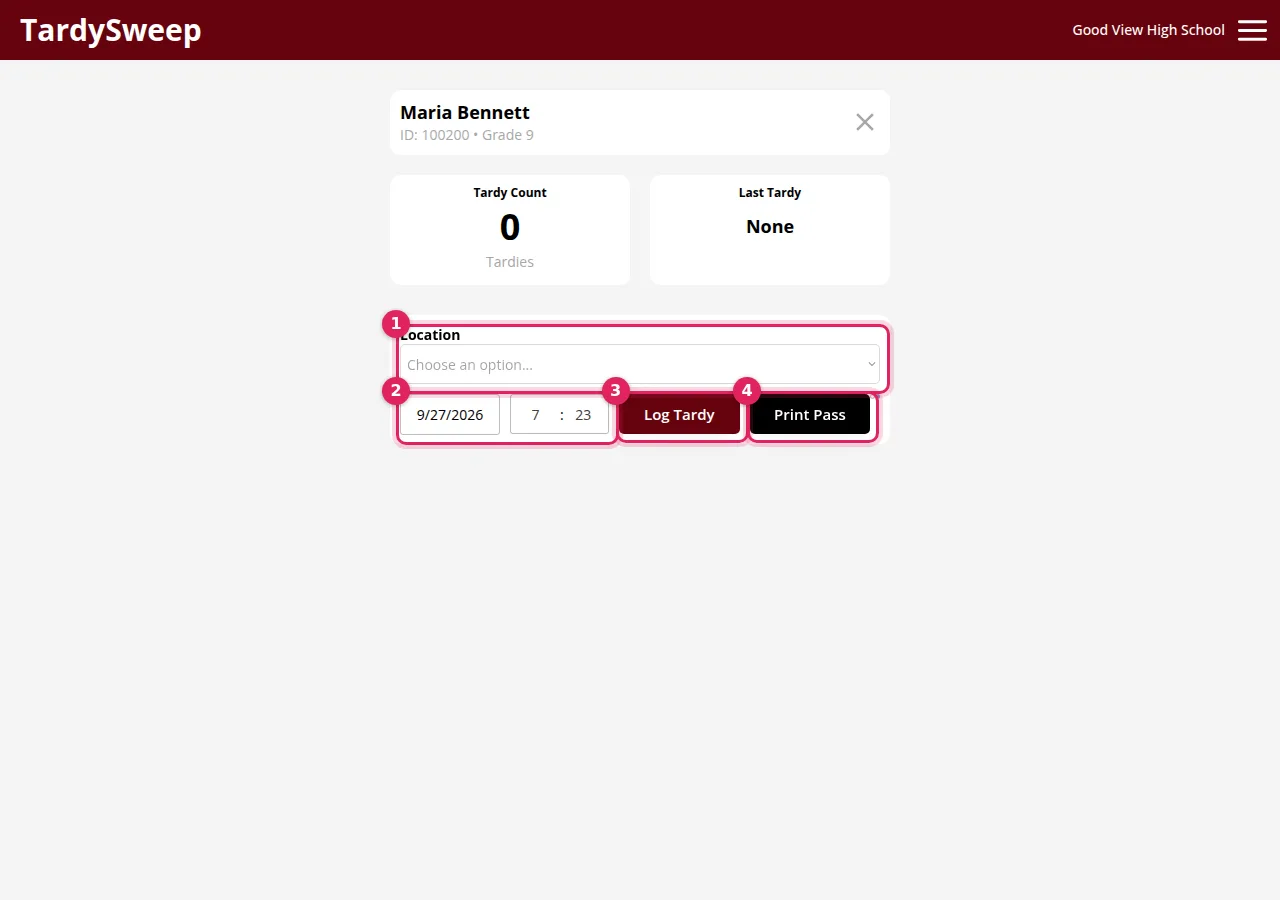
- Scan the same card again to log the tardy. (Clicking Log Tardy does the same thing.)
- Scan the next student's card. TardySweep switches to them automatically, so there's no need to close the card first.
Tip: Choose the station's Location once and TardySweep remembers it. Between scans, try not to click elsewhere on the page. If a scan doesn't register, click the X on the student's card. That puts the cursor back in the Student box, ready for the next scan.
Tip: Using passes? Ask your admin to turn on Bypass Print Popup for your default pass. Then it's scan, scan, and the pass prints. Not using passes? It's just scan, scan, done.
If something goes wrong
Nothing happens when I scan. Click the X to close any open student card (or click in the Student box) and scan again. Check the scanner beeps or lights up. If not, unplug it and plug it back in.
The ID shows in the box but nothing opens. The scanner isn't pressing Enter. Press Enter yourself for now, then set the scanner to add an "Enter" or "CR" suffix. The scanner's manual has a setup barcode for this.
The wrong student opens, or no one does. The number in the barcode doesn't match the Student ID in TardySweep. Scan into Notepad and compare. Look for extra zeros at the front, a letter prefix, or a different ID altogether. Ask your admin: they may need to import the IDs that match the cards, or the scanner may be able to drop the extra characters.
The student isn't in TardySweep. See Student not found? Fixing mistakes.
Was this helpful?
Thanks for the feedback!