
Print a tardy pass
For schools that use passes: print a pass for a student to take to class, reprint one, and fix common printing problems.
Passes are optional. Many schools never print them. If your school doesn't use passes, you won't see any of this, and logging a tardy is all you need to do.
Print a pass after logging a tardy
- Log the tardy as usual (see Log a tardy in 3 steps). The print window opens by itself.
- Check the Pass Template. Your school's default is already picked.
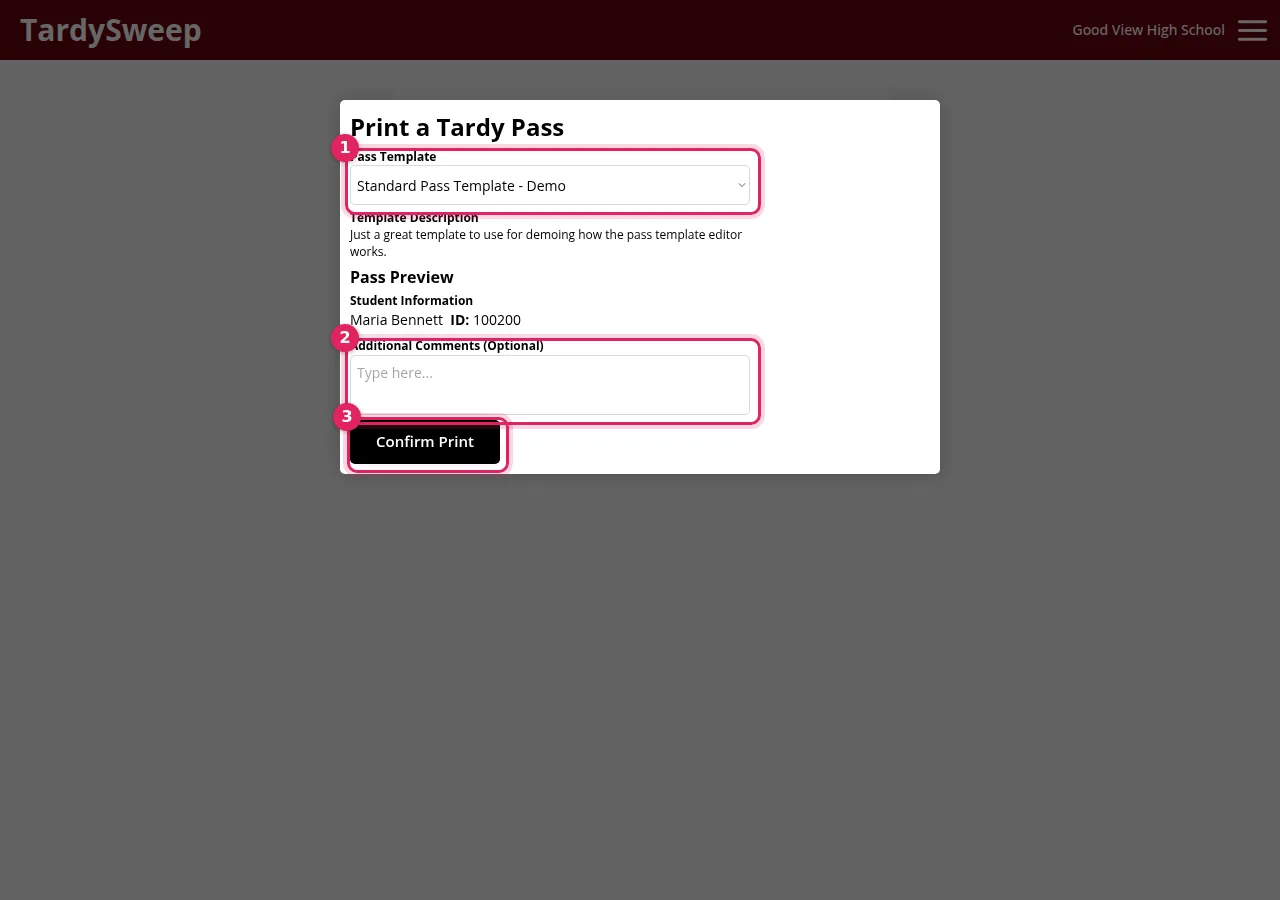
- Add any Additional Comments you want printed on the pass (optional).
- Click Confirm Print. Your browser's print window opens. Check the printer and click Print.
Tip: At many tardy stations the pass is set to skip TardySweep's window and go straight to printing. If that's how your school works, you'll go directly to the browser's print window, or the pass will simply print.
Reprint a pass
Lost pass, or the printer jammed? Open the student's card and click Print Pass. It prints the pass for their most recent tardy. It does not log another tardy.
If something goes wrong
No Print Pass button? Your school doesn't use passes, or hasn't created a pass template yet. Ask your admin.
The pass prints tiny or cut off? In the browser's print window, set the paper size to match the printer (for example 80mm for receipt printers) and set scale to 100% or "Fit to page". Your admin can also change the template's Page Size.
The pass prints blank? Turn on "Background graphics" in the print window's extra settings, and check the printer has paper and toner.
Was this helpful?
Thanks for the feedback!