
Log a tardy in 3 steps
Find the student, check the details, and click Log Tardy.
The Tardy Logger is the first page you see after signing in. You can also get there from the menu.
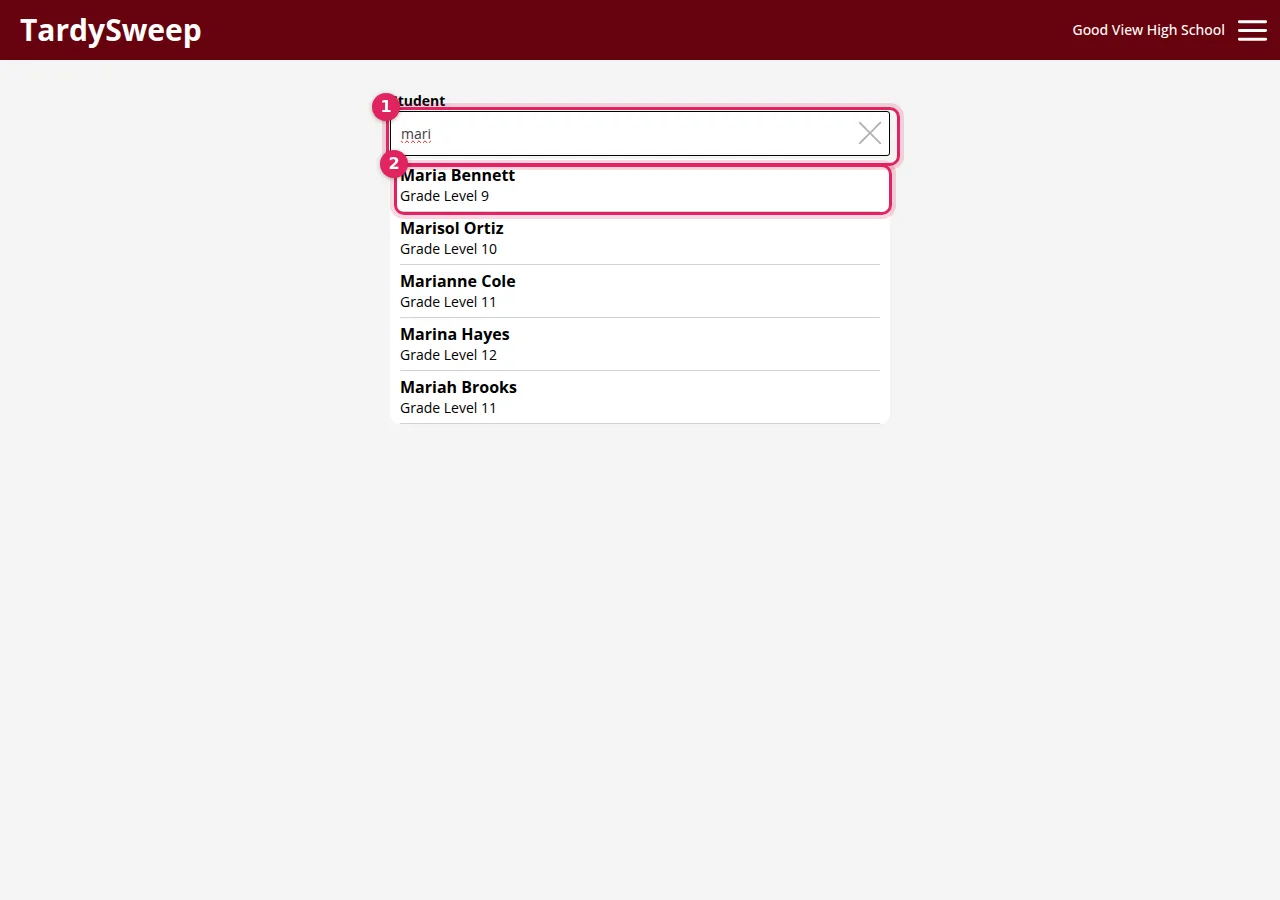
- Find the student. In the Student box, type at least 3 letters of their first or last name and click the right student in the list. If you know their full student ID, type it and press Enter. If your station has a barcode scanner, just scan their ID card.
- Check the details. The student's card opens. The date and time are filled in with right now. If your school uses locations, check the Location. TardySweep remembers the last one you picked, so at a tardy station you usually set it once.
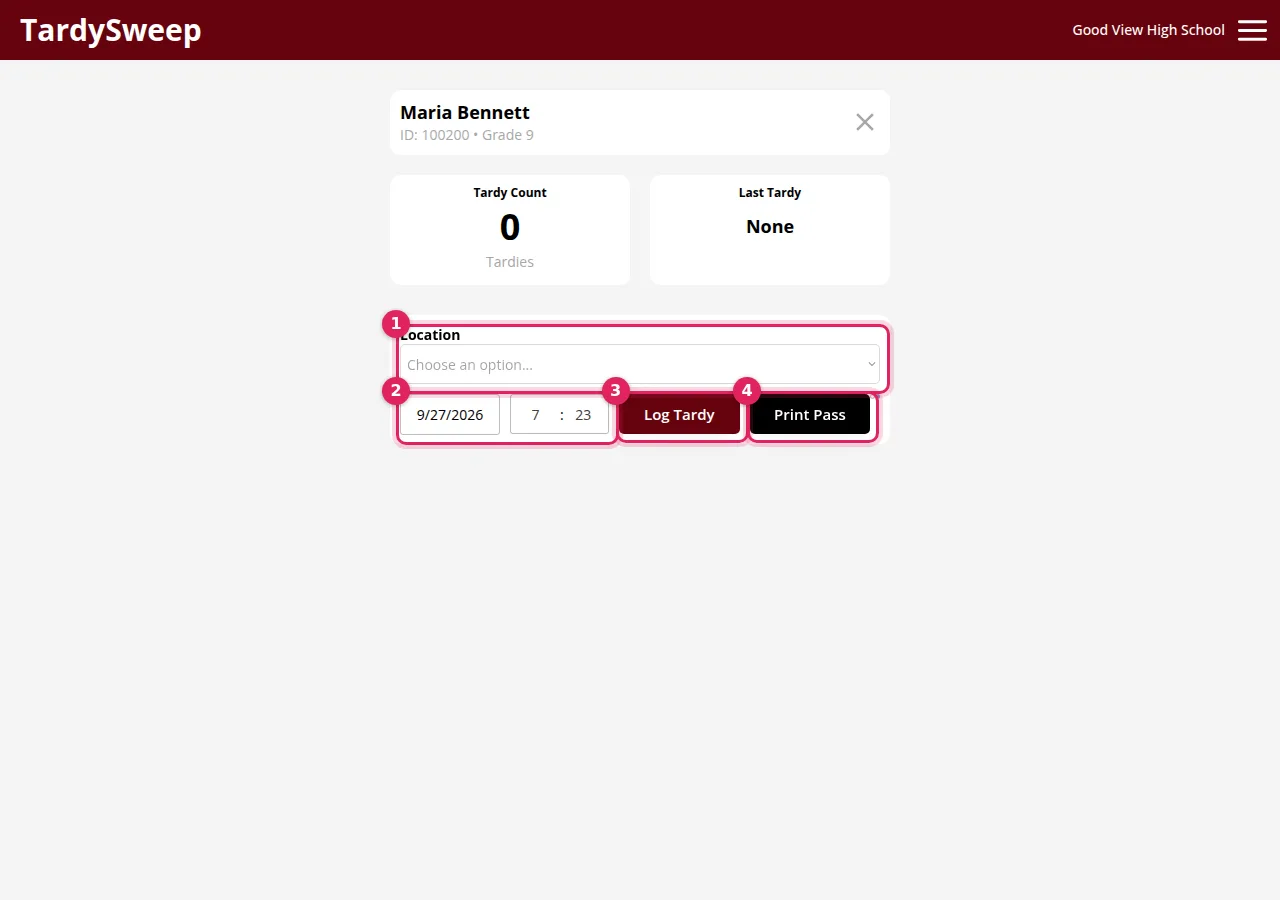
- Click Log Tardy. Done! With a barcode scanner, you can scan the same card a second time instead of clicking.
What happens next
If your school doesn't use passes, that's it. Move on to the next student.
If your school uses passes, the print window opens by itself (or the pass prints straight away). See Print a tardy pass.
How to know it worked
The tardy appears at the top of the student's Recent Activity and their tardy count goes up. If the tardy triggers one of your school's rules, you'll see an alert on the card telling you what to do next.
Tip: Logging a tardy from earlier? Change the date and time on the card before you click Log Tardy. When you type a time, 12:00 to 4:59 counts as PM and everything else as AM.
Tip: Recent Activity shows the student's last 5 tardies since the count last reset. Click View All to see more. Click the X to close the card and look up the next student.
Was this helpful?
Thanks for the feedback!