
Your reporting dashboard in 5 minutes
Open saved reports, change what a report shows, and download the results as a spreadsheet.
Reporting (in the menu) shows who is late, when and where, so you can follow up. Everything is built from saved reports that you can pin, change and share.
Find your way around
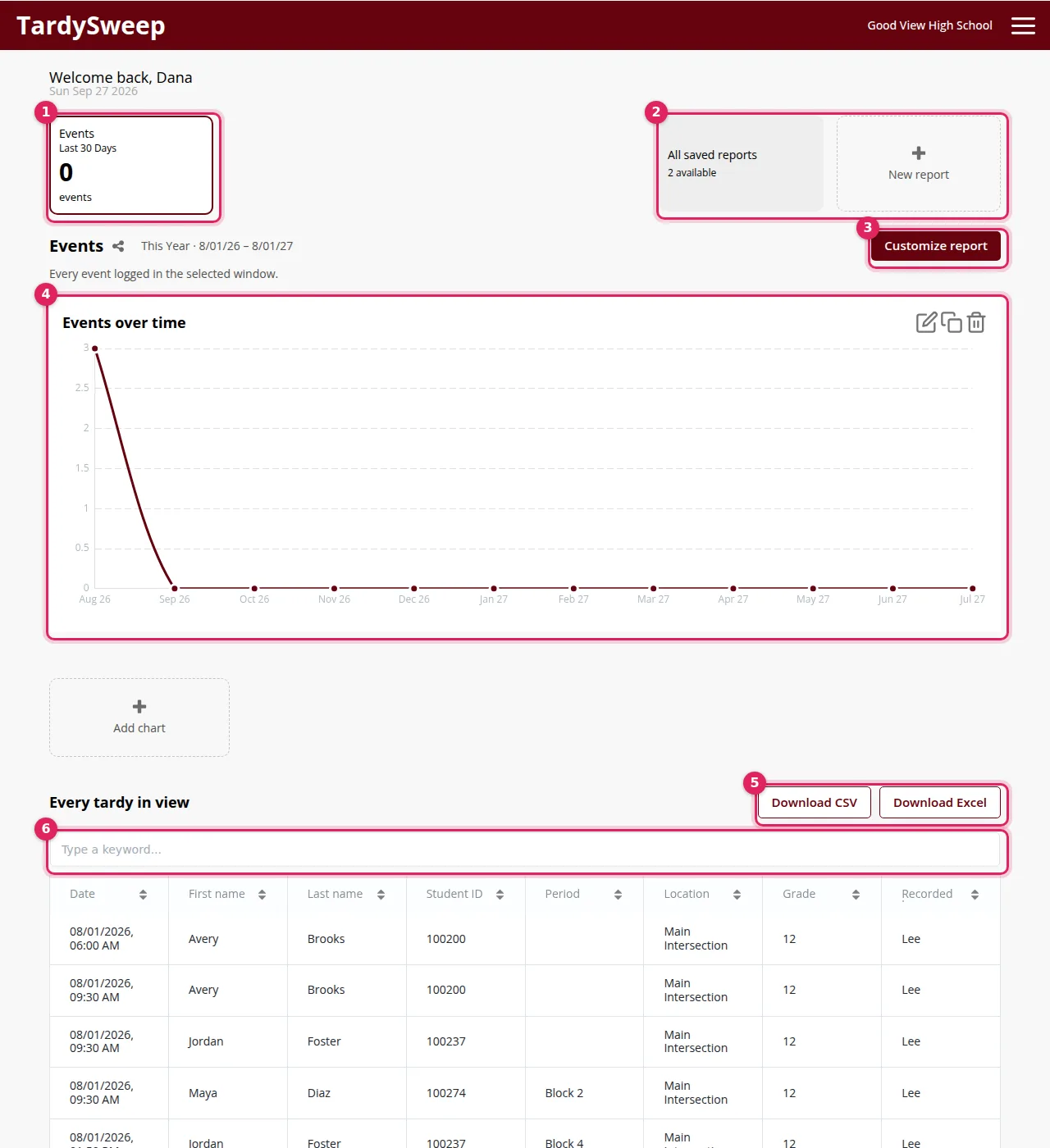
- Pinned cards at the top are your go-to reports. Click one to open it.
- All saved reports lists your own reports plus the ones your school has shared. Click Open on any of them.
- New report starts from scratch.
- The table at the bottom lists each tardy: date, name, student ID, period, location, grade and who recorded it. Type in the search box to filter it.
Change what a report shows
- Click Customize report.
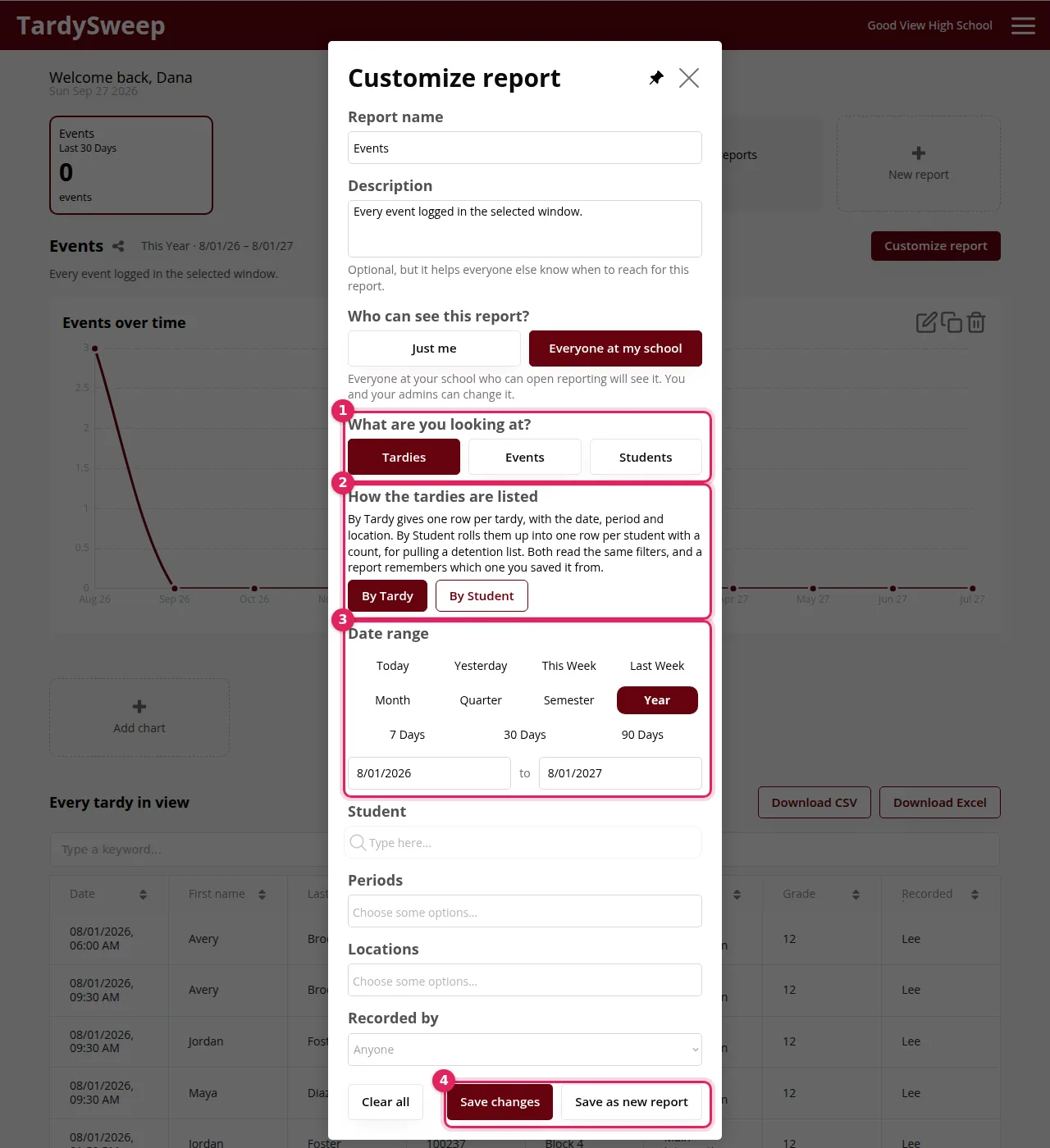
- Under What are you looking at?, choose Tardies, Events (students who triggered a consequence rule) or Students.
- Under How the tardies are listed, choose By Tardy (one row per tardy) or By Student (one row per student with their total). By Student is the one to use for a detention list.
- Pick a Date range: Today, Yesterday, This Week, Last Week, Month, Quarter, Semester, Year, the last 7, 30 or 90 days, or your own from/to dates.
- Optionally narrow it down with filters: Student, Periods, Locations, Recorded by or Event rules.
- Click Save changes to update this report, or Save as new report to keep the original.
Share and download
Under Who can see this report?, choose Just me or Everyone at my school. Click the pin icon to add a report to your cards. Click Download CSV or Download Excel to open the results in a spreadsheet.
Tip: Numbers look off? Check the date range first, then make sure your school calendar and time zone are set correctly (see Steps 1 and 2 in Setting Up Your School).
Was this helpful?
Thanks for the feedback!